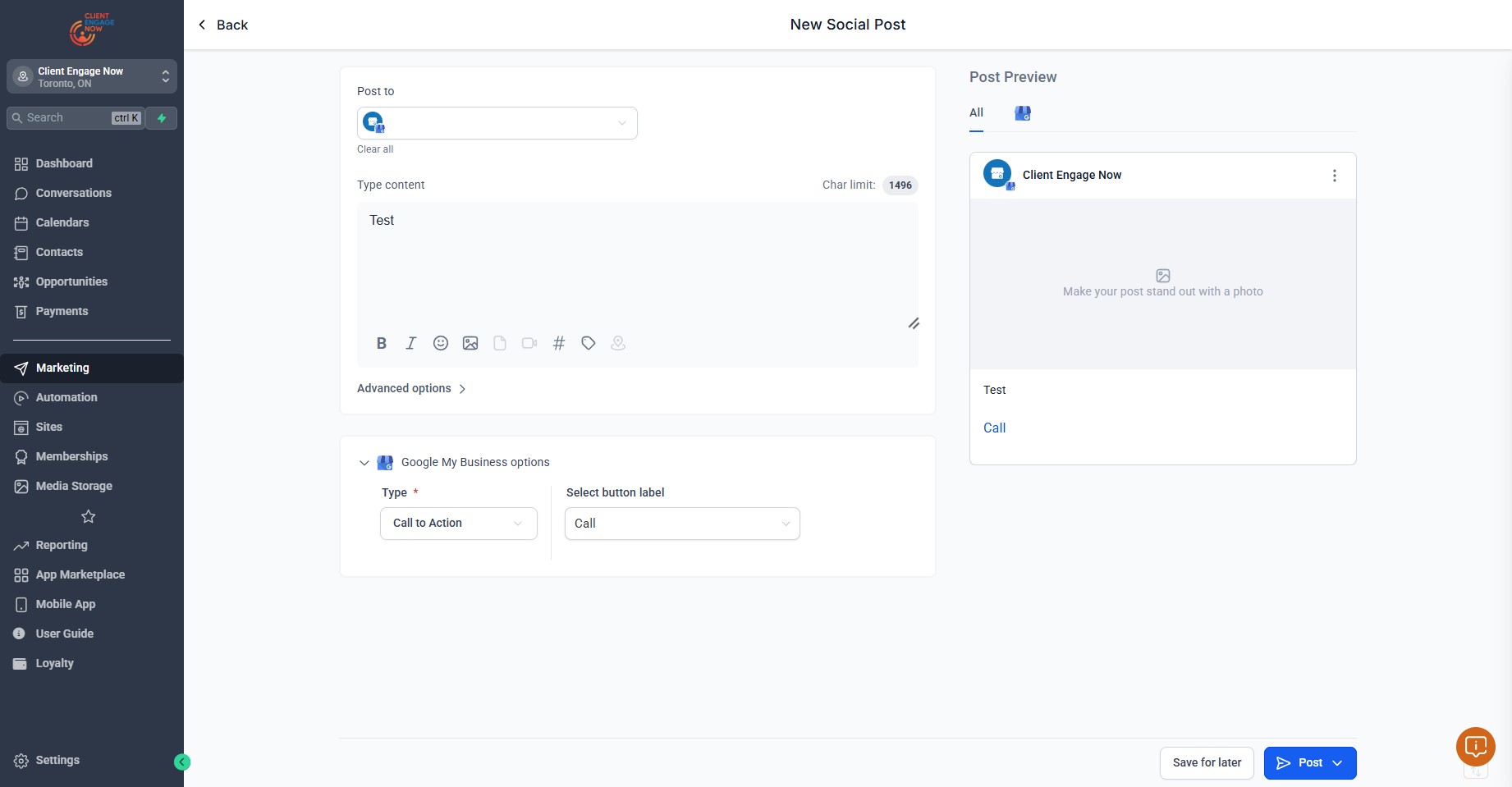
Client Engage Now: How To Create Posts and Cross Post
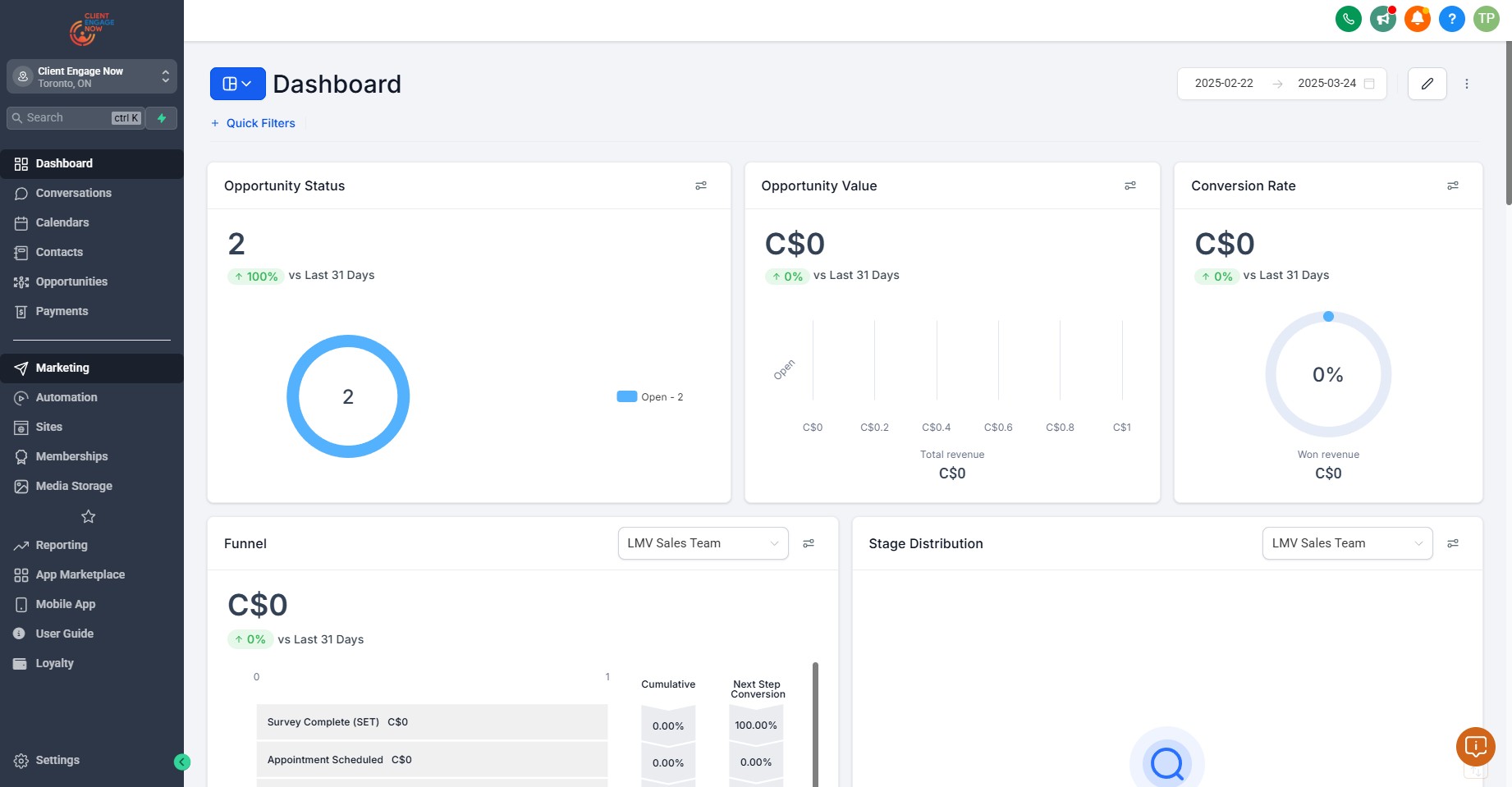
Click on "Marketing"
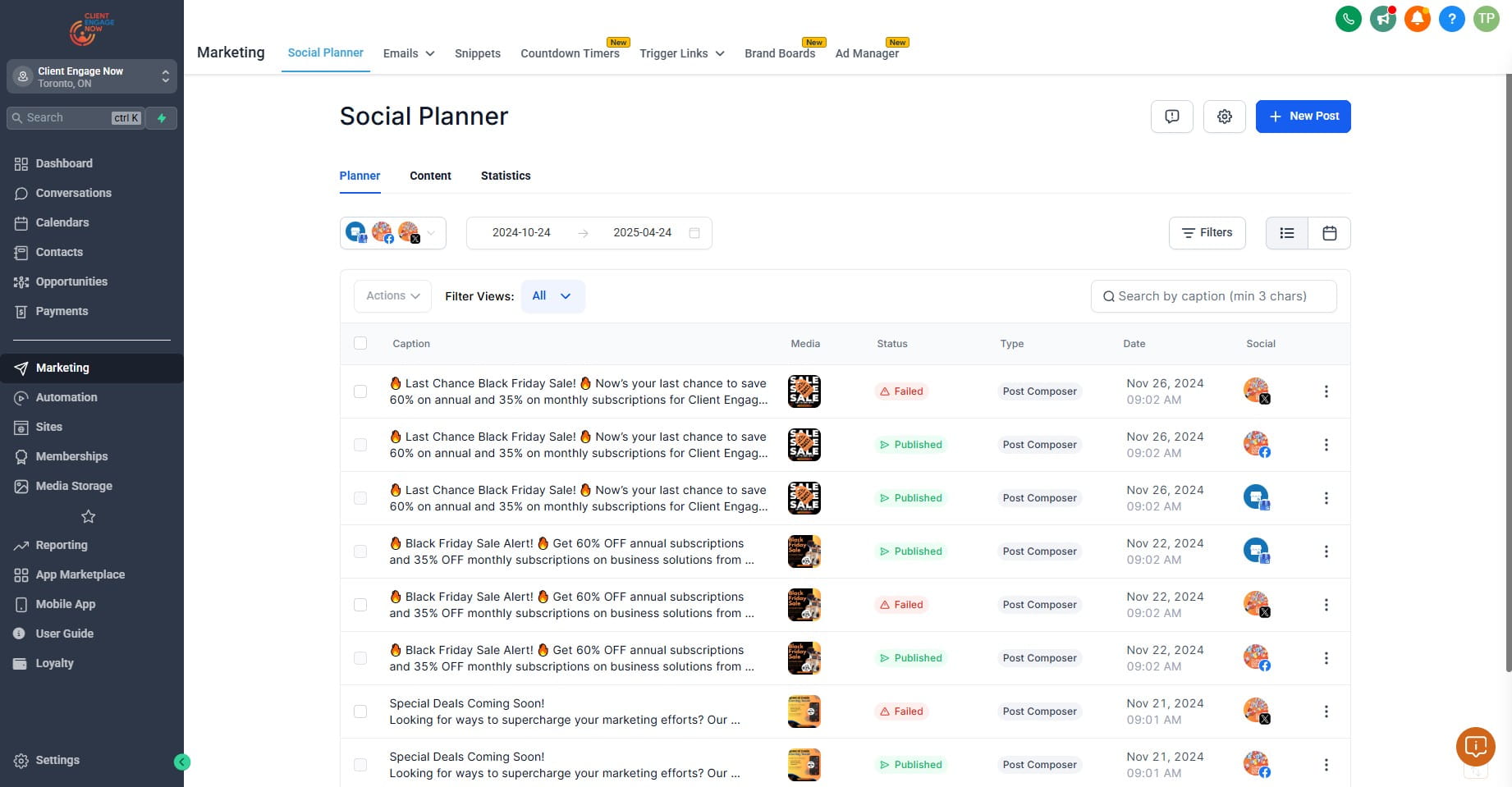
Click on "New Post"
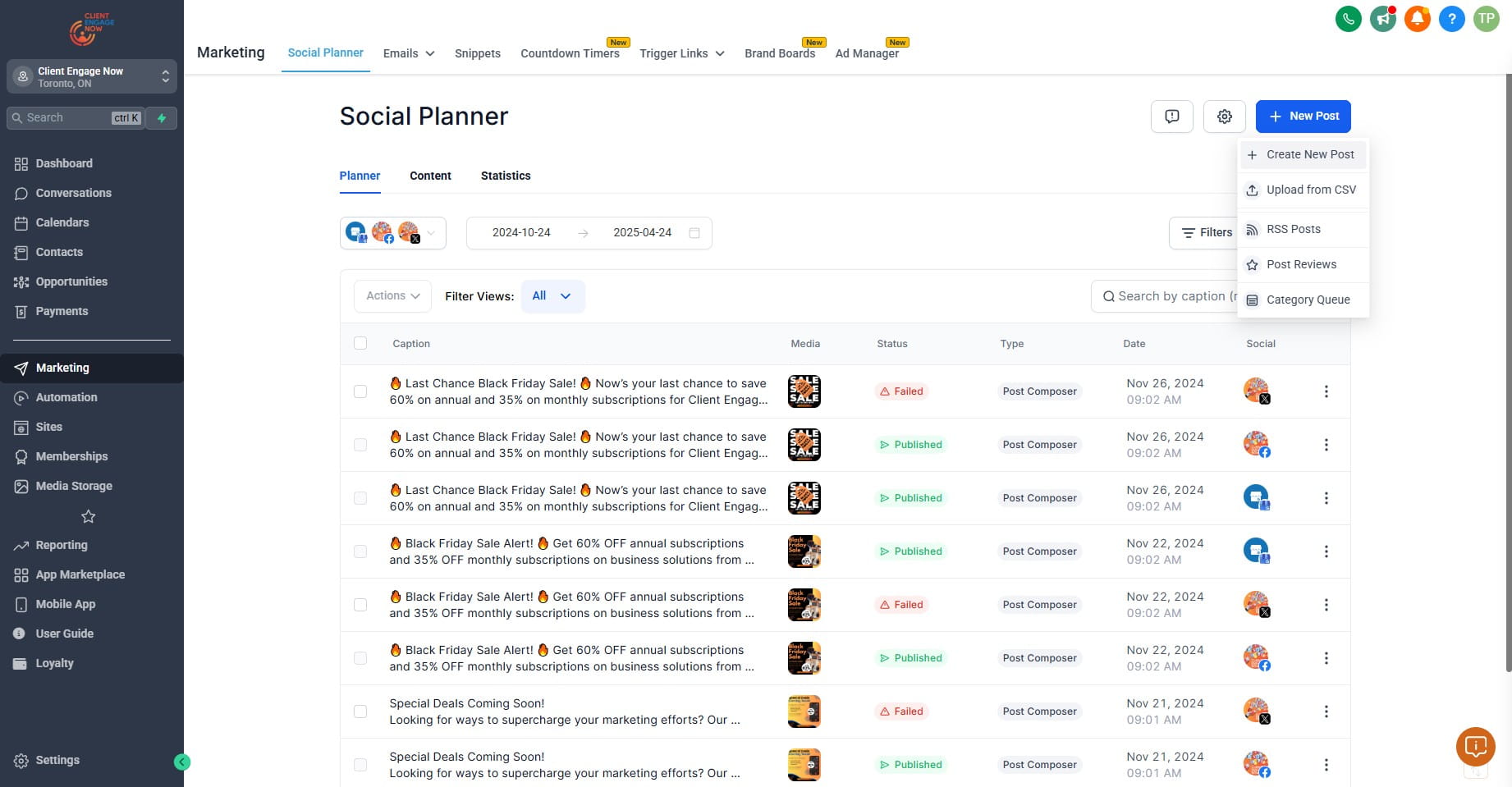
Click on "Create New Post"
Click on "Select a social account"
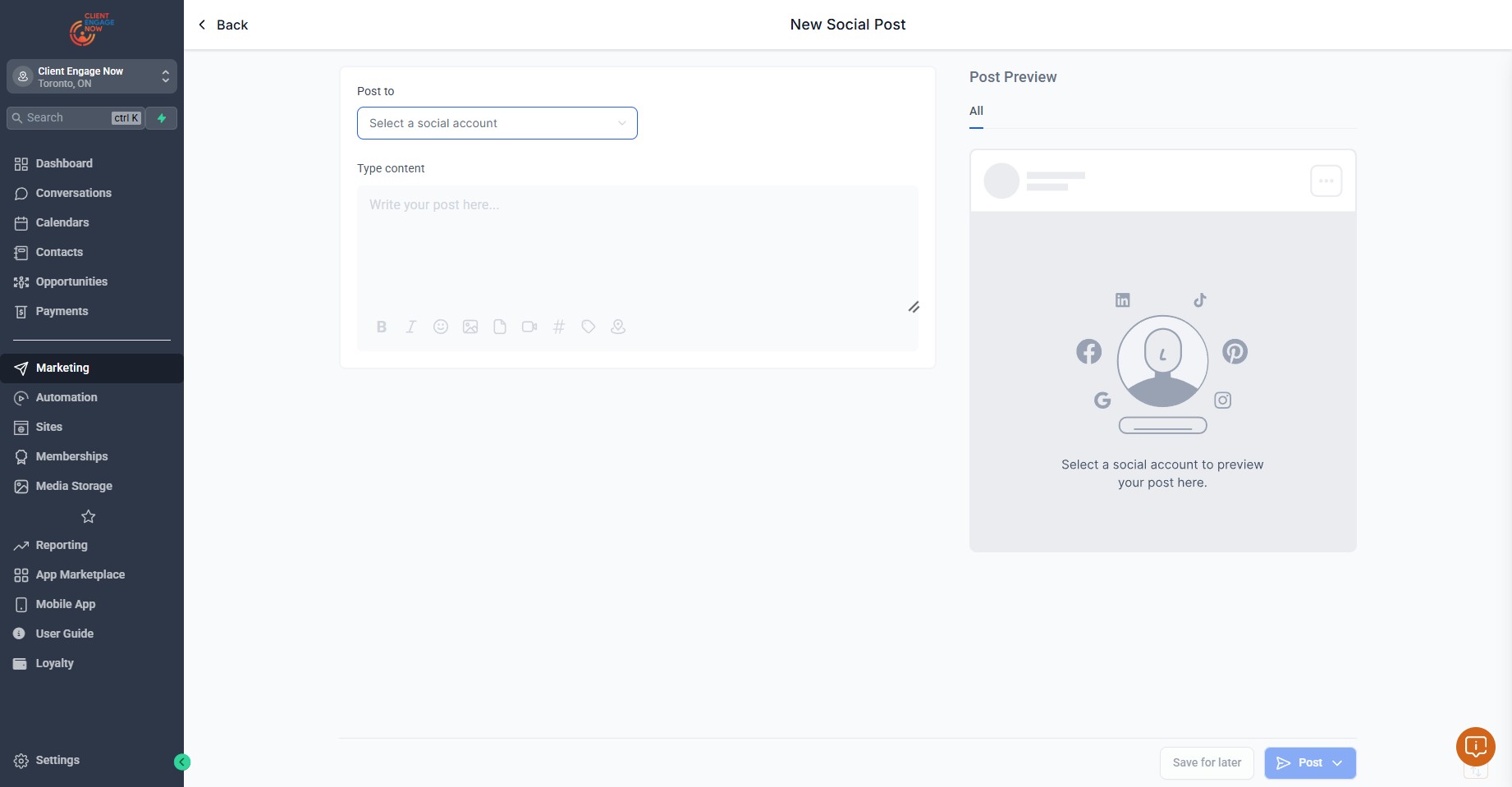
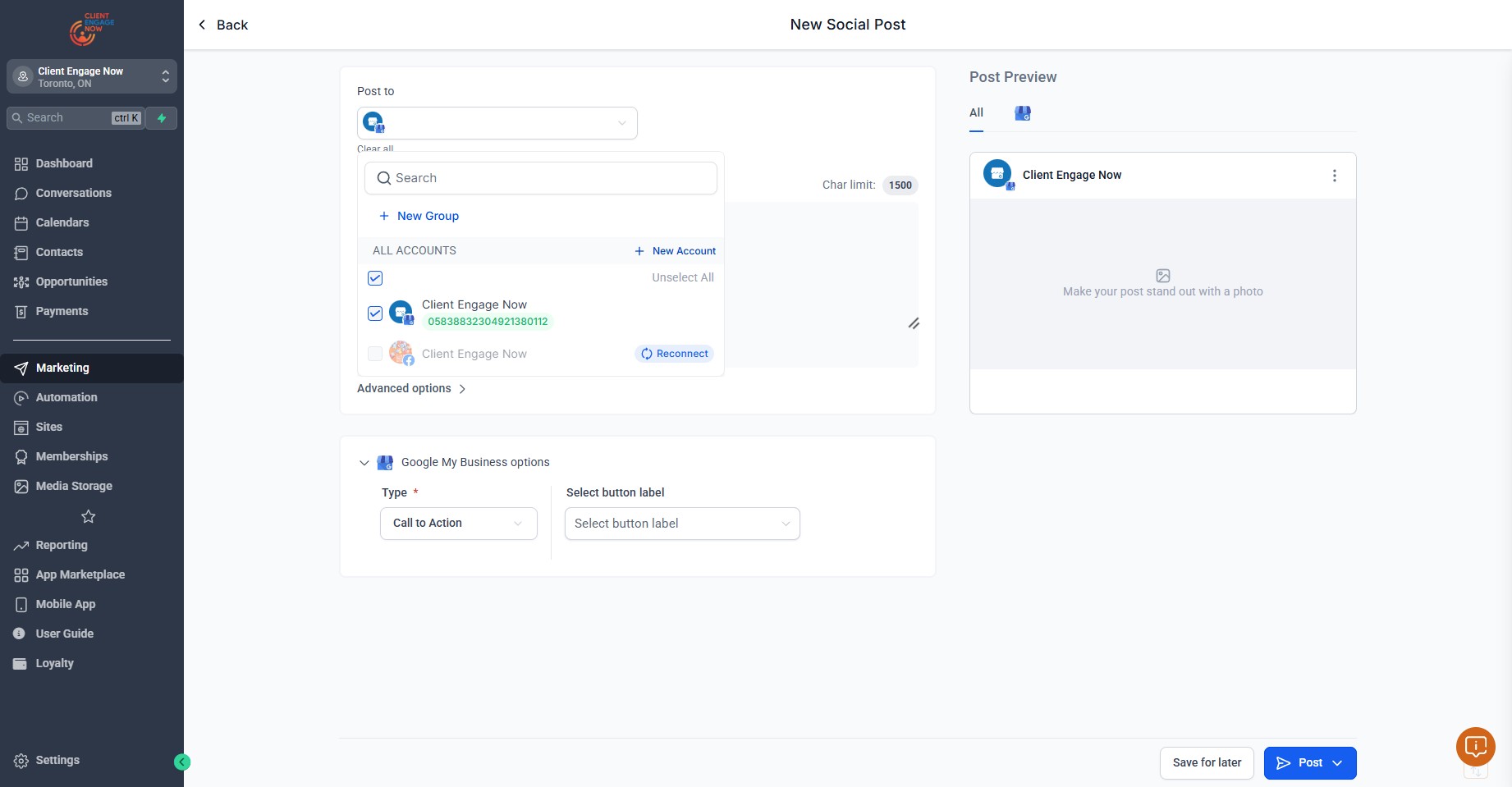
Click this icon to select all connected platforms to post to
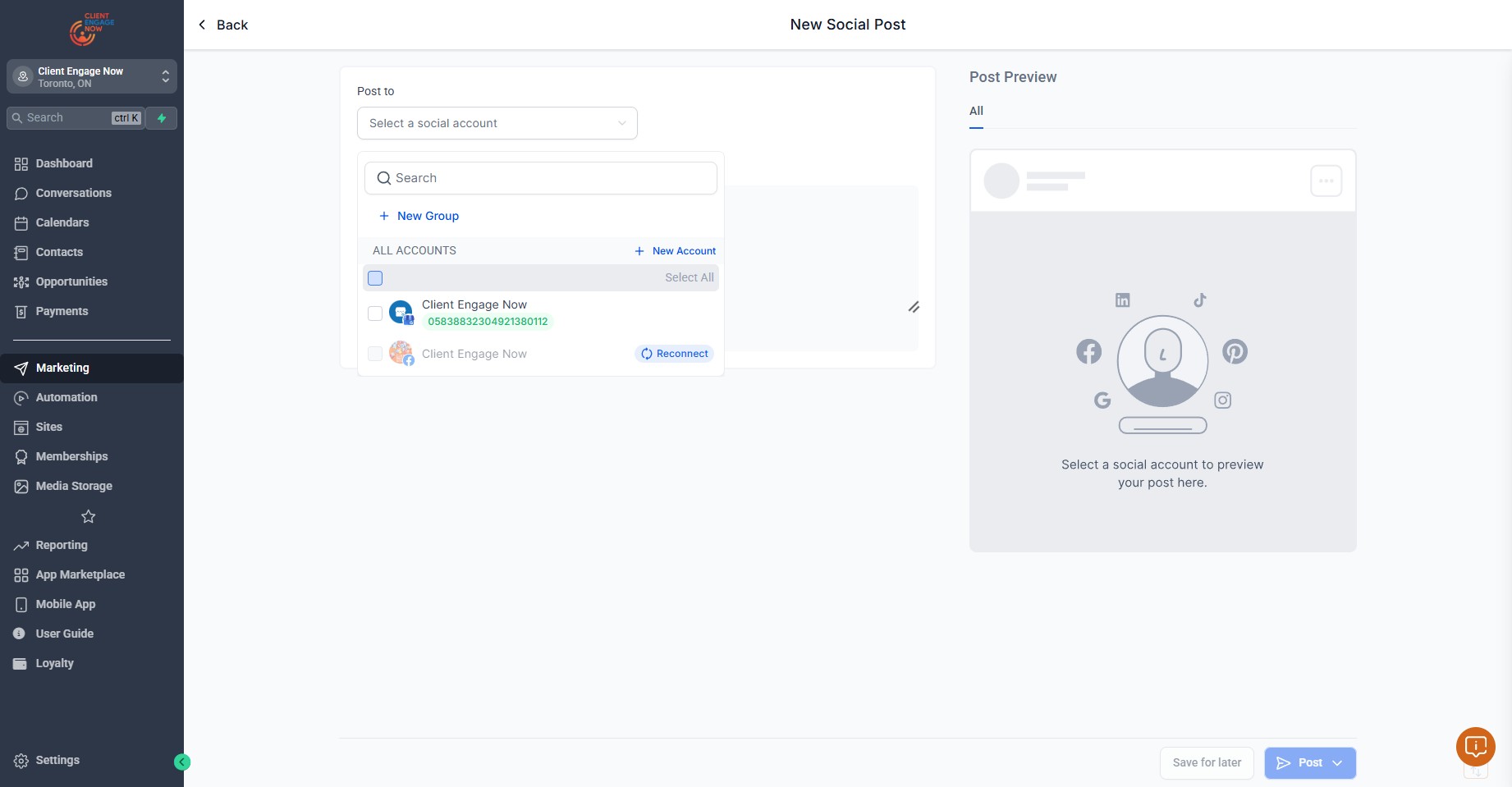
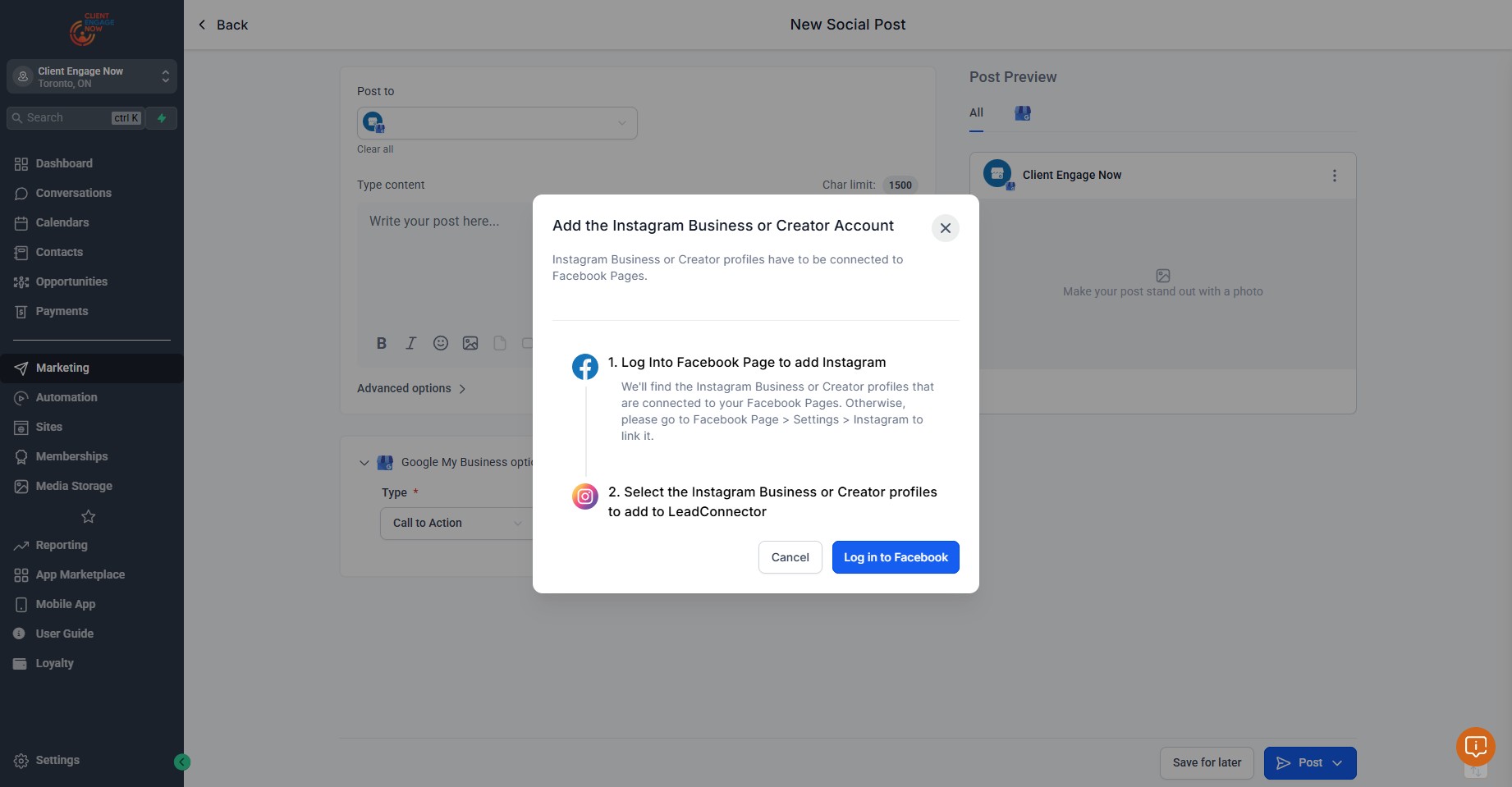
Click this icon to add New Social Accounts
Locate the desired platform you wish to connect and Click on "Connect"
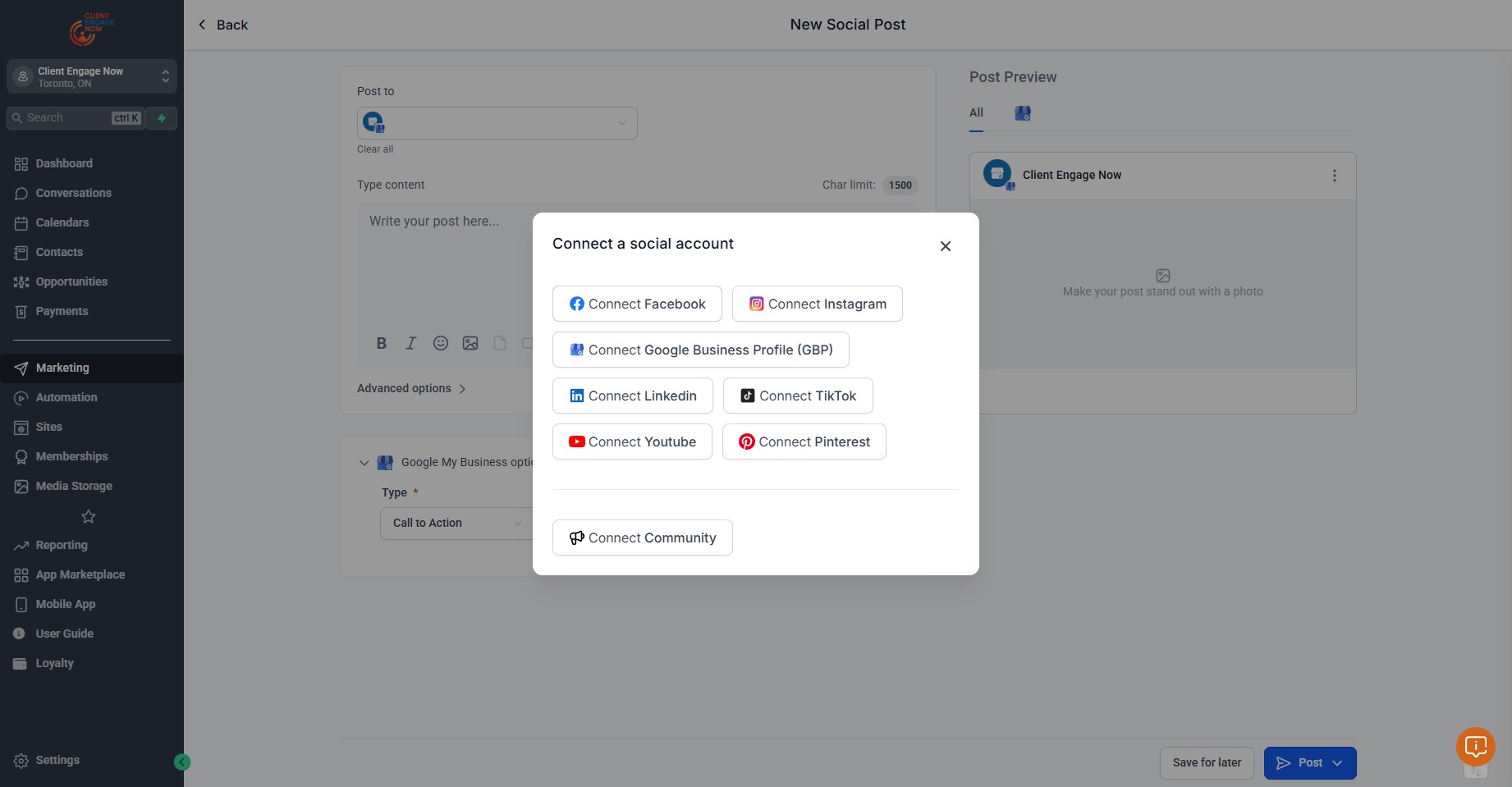
Then proceed with next prompted steps and login to the desired platform
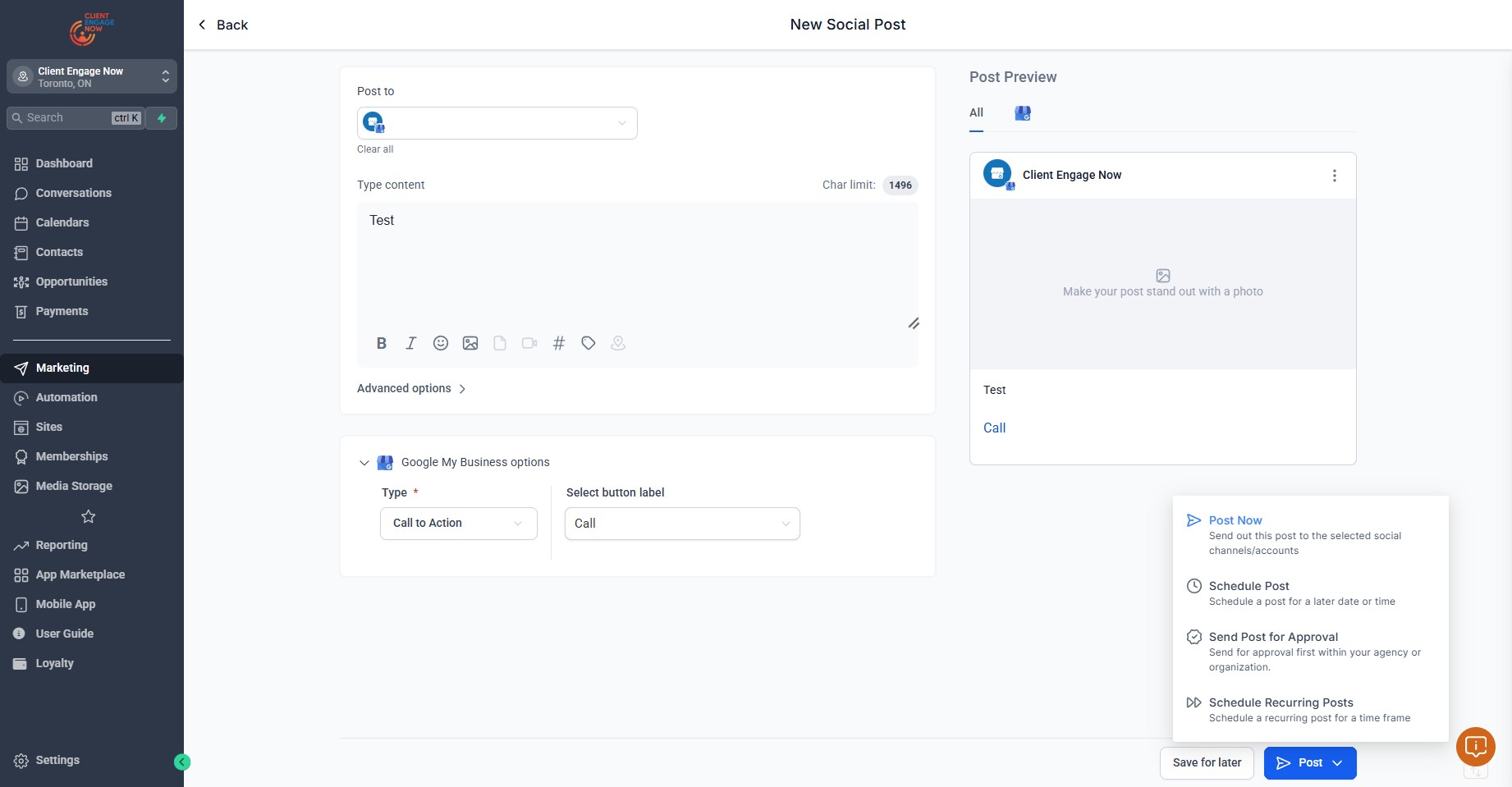
The text box to enter your Post Caption
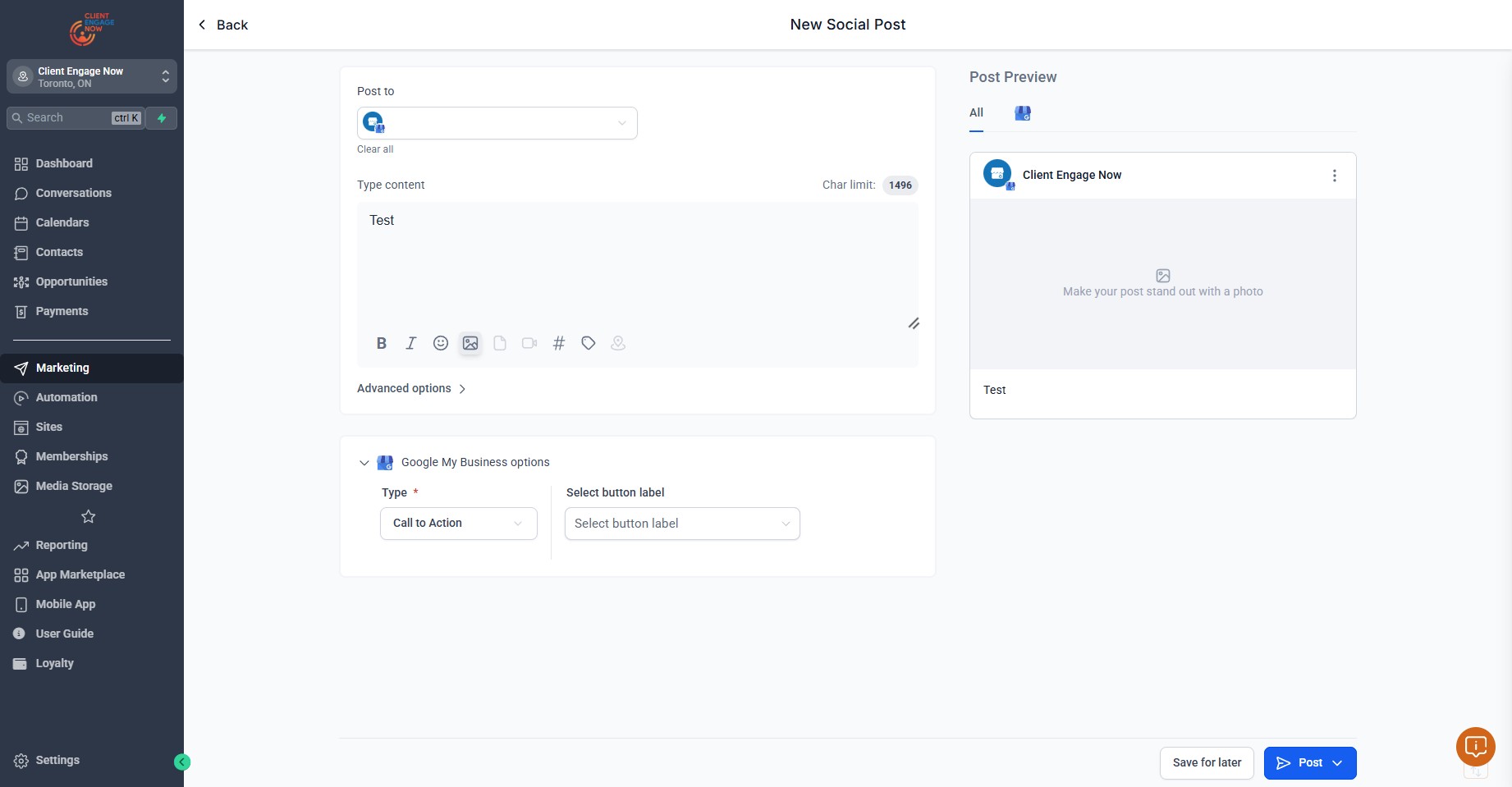
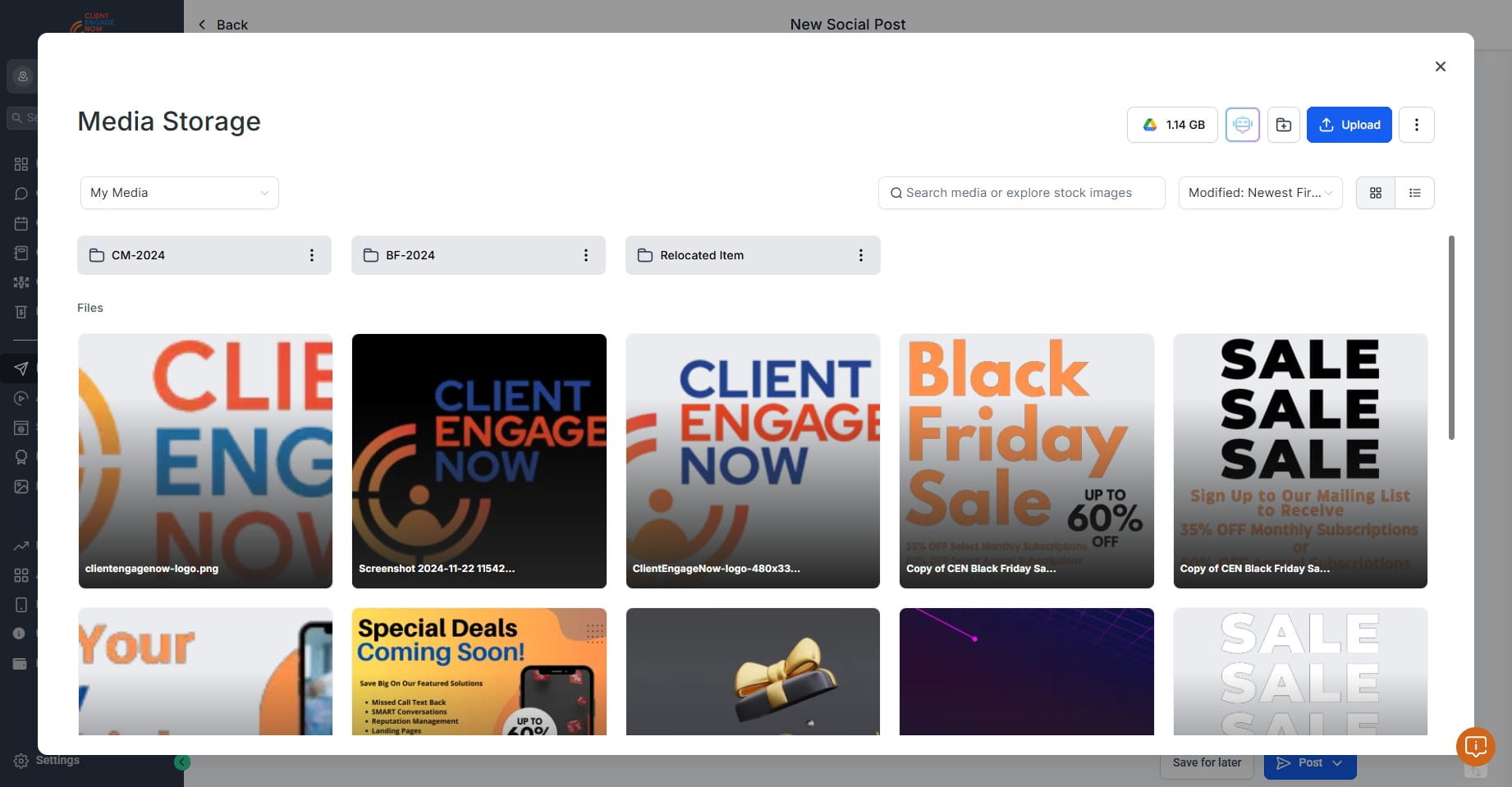
Click this icon to add media and Images
Click on Upload to add new media and photos to the Media Storage
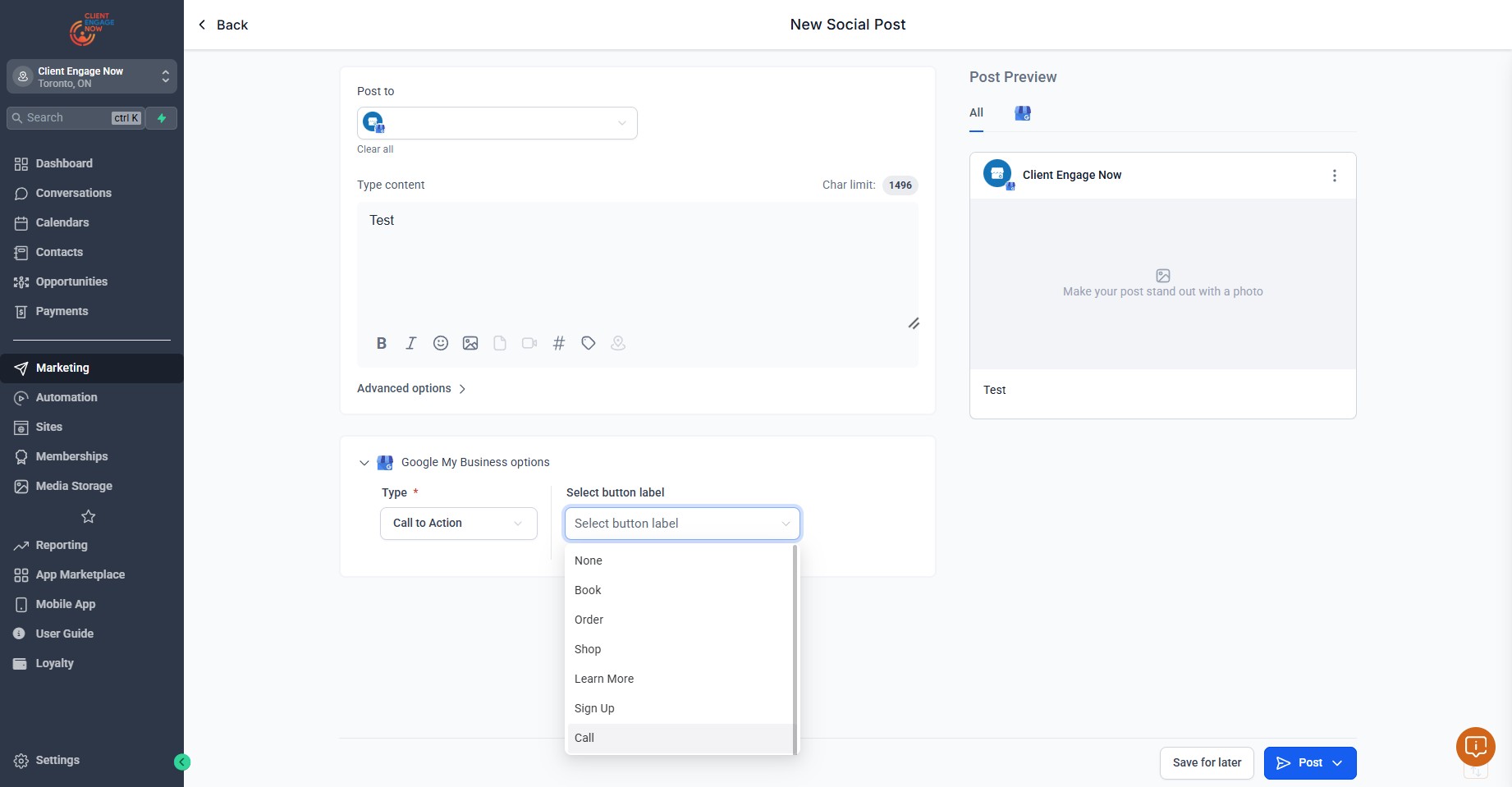
Click on "Select button label"
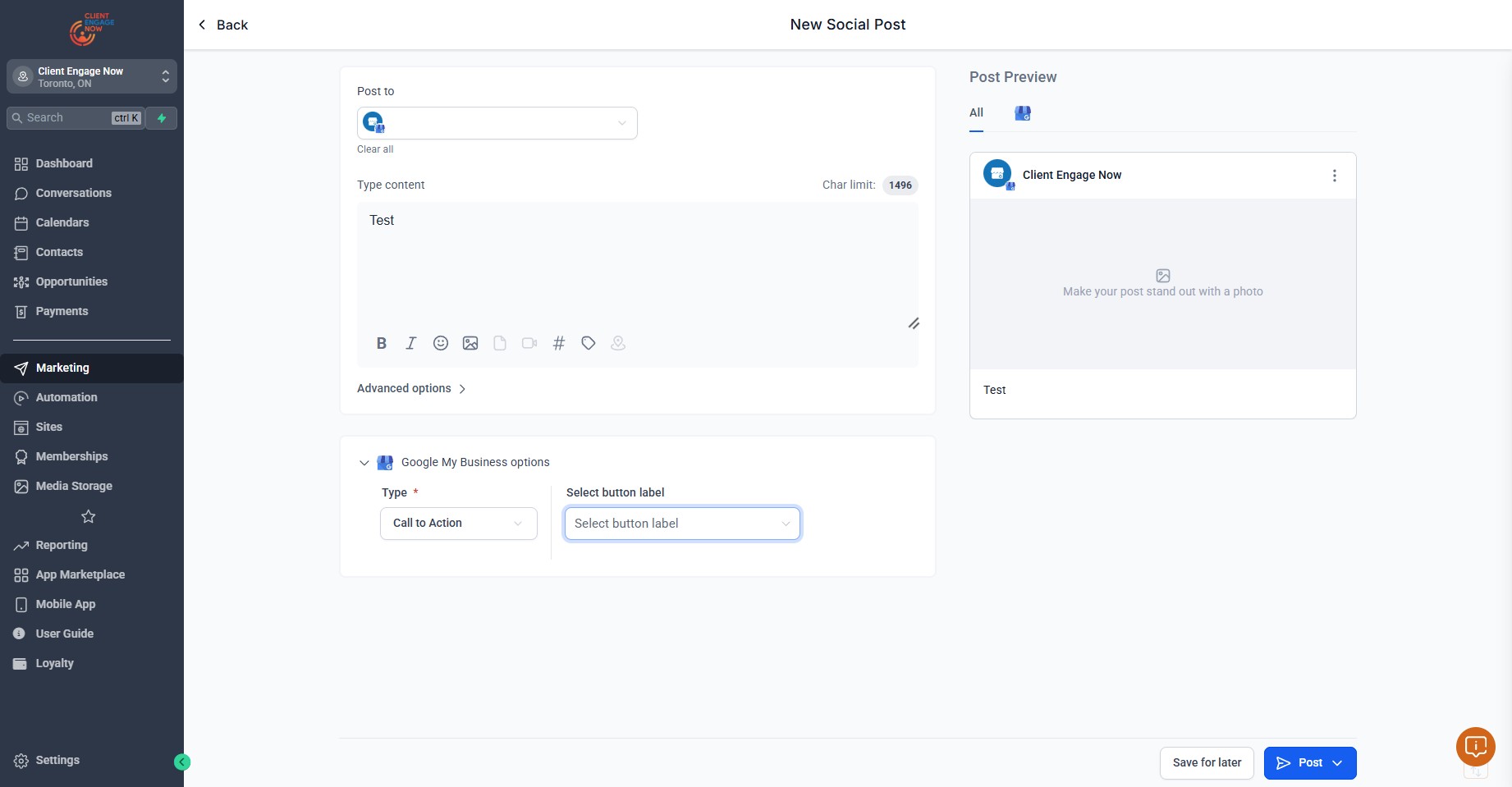
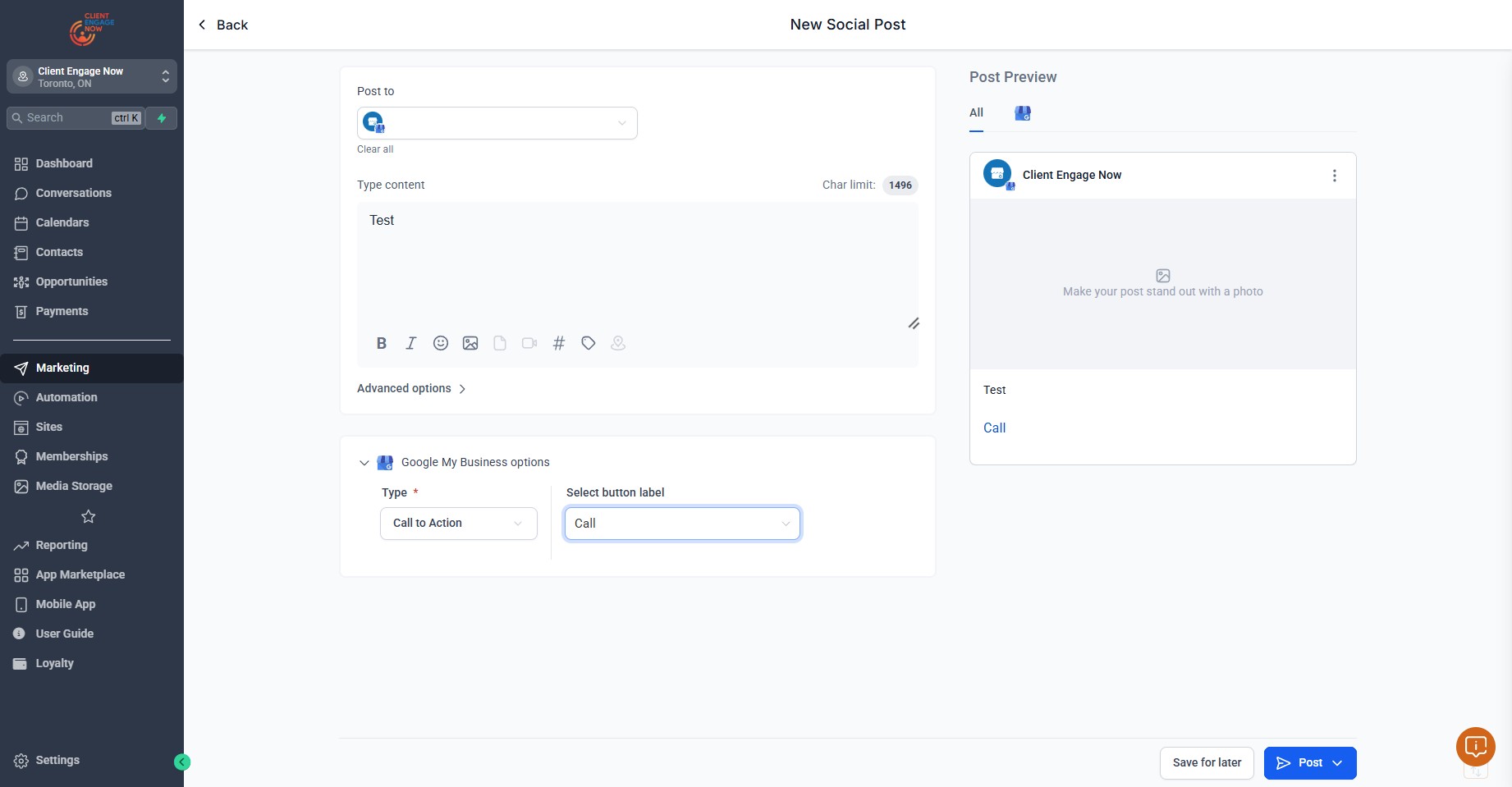
Click on one of the Call to Action buttons for Google Business Profile ("Call" is reccomended)
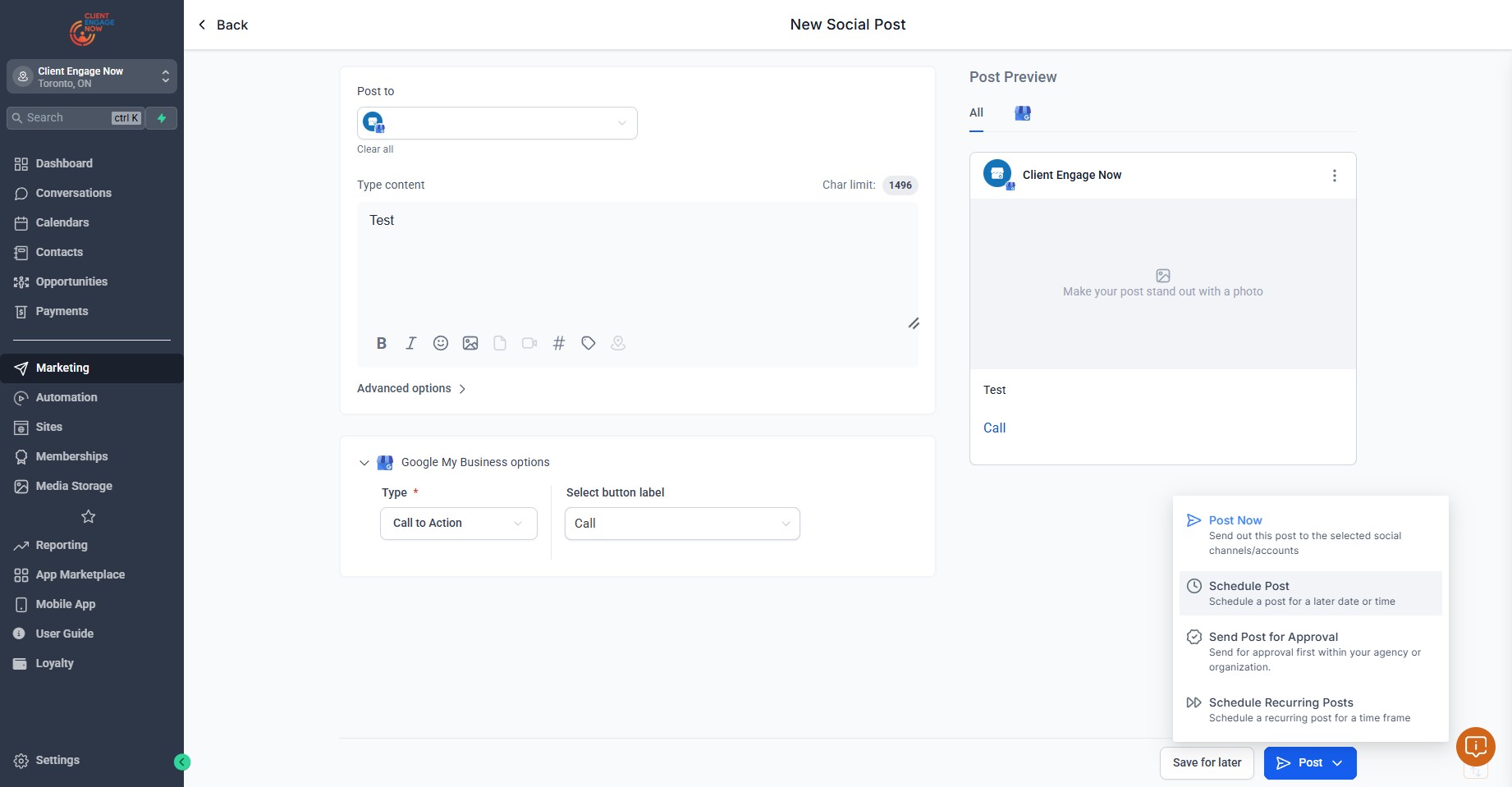
Click this icon for Post options
Click on "Schedule a post for a later date or time"
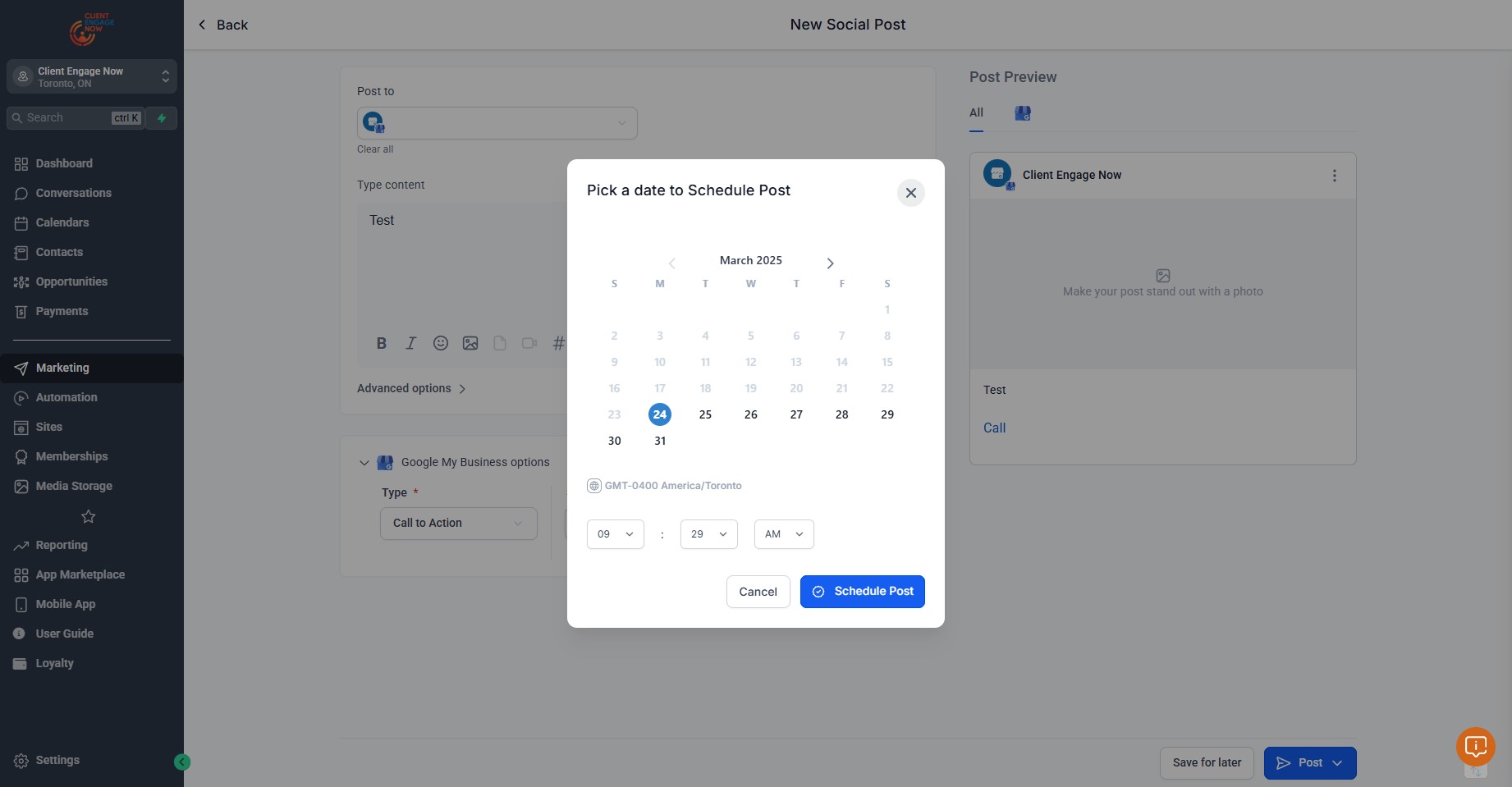
Select preferred date and time to schedule the post
Click on Post Now to post to respective platforms immediately
Done 🚀