CEN Rewards: Initial Startup Guide
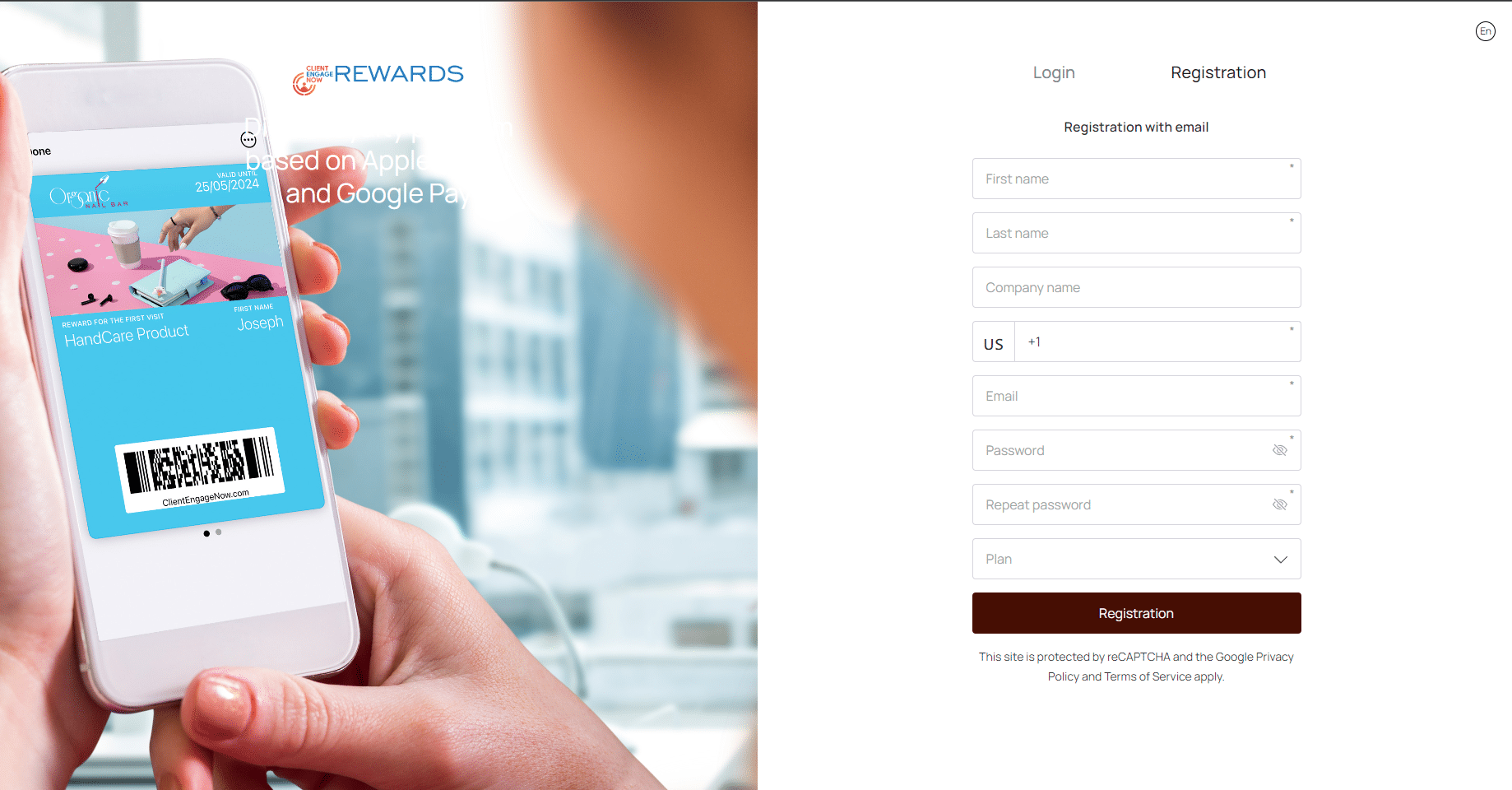
Navigate to https://rewards.clientengagenow.com/
Register or Login to CEN Rewards
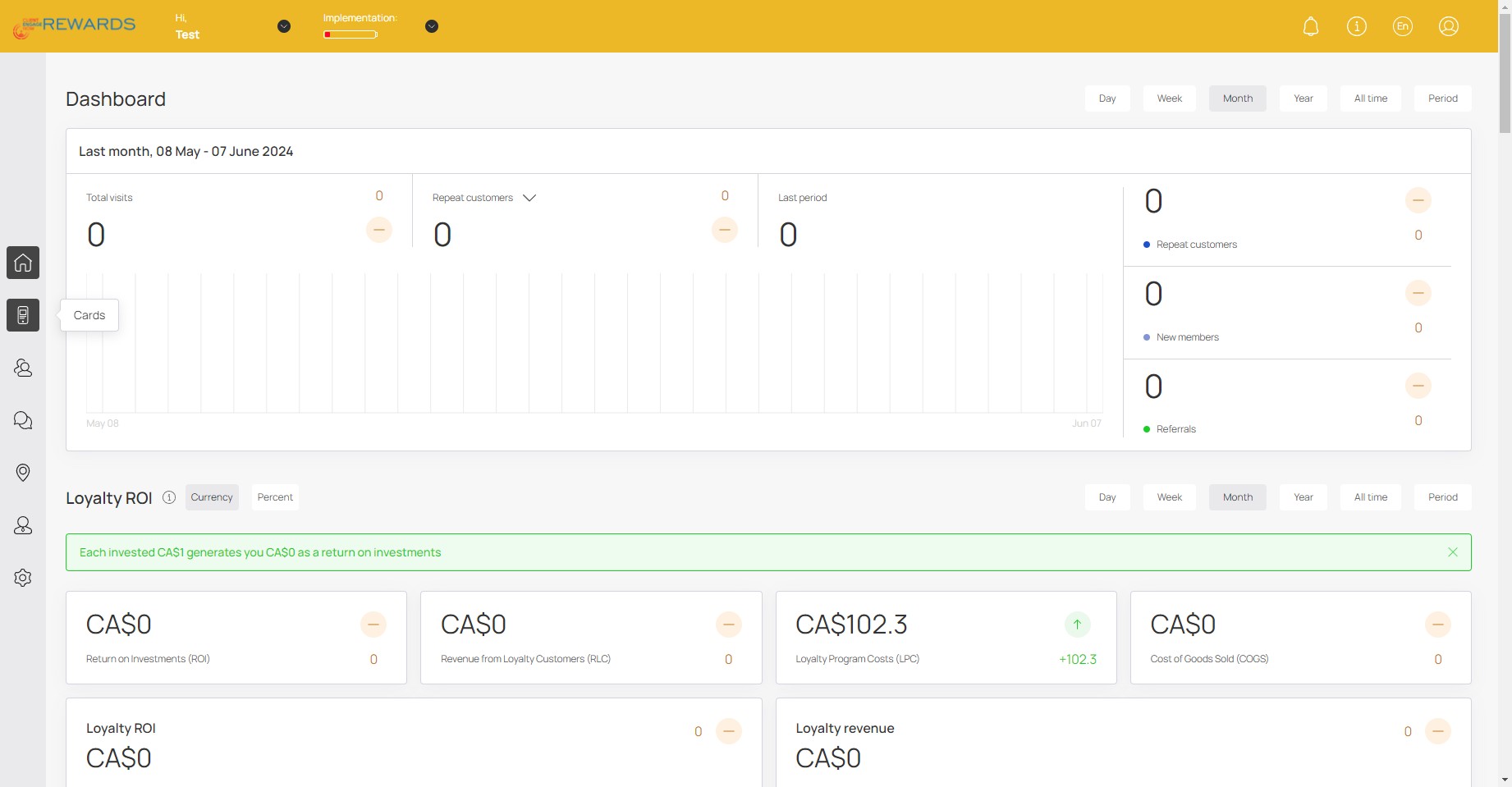
Click the Cards icon on the left side menu
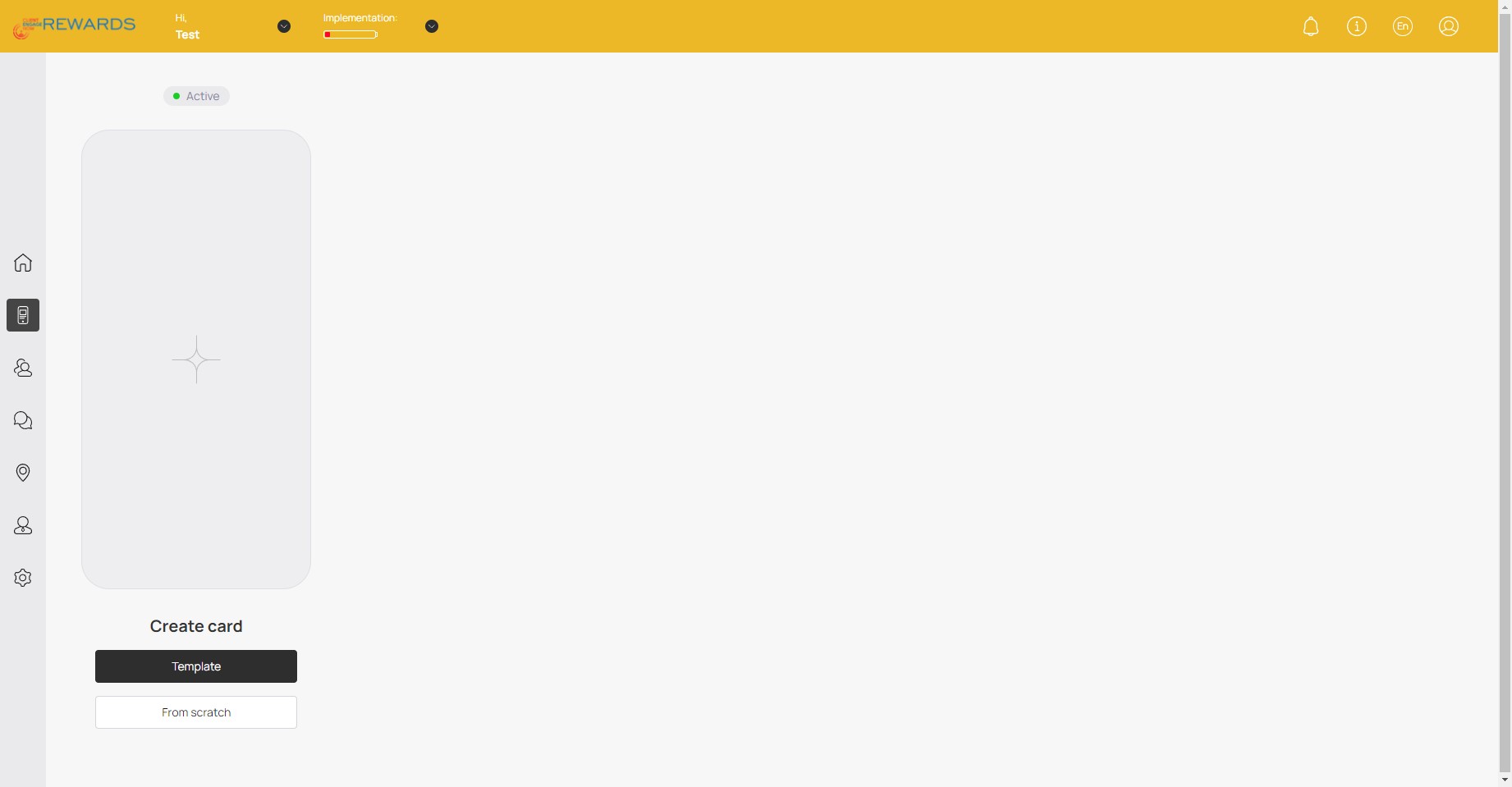
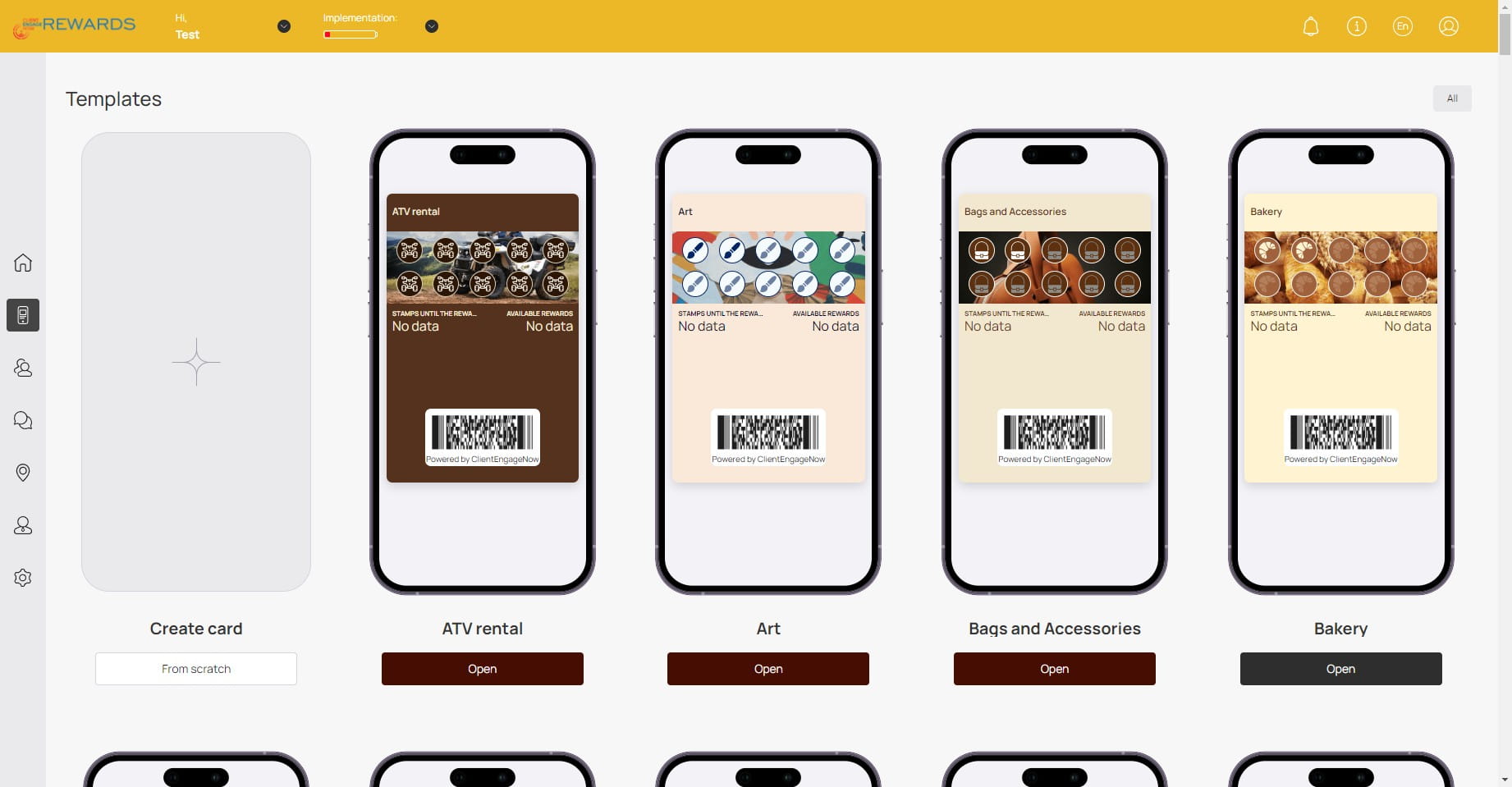
Click on "Template" to create a card based on a template (recommended) or Click on "From scratch" to create a new custom card.
Select a template that matches your business and click on "Open"
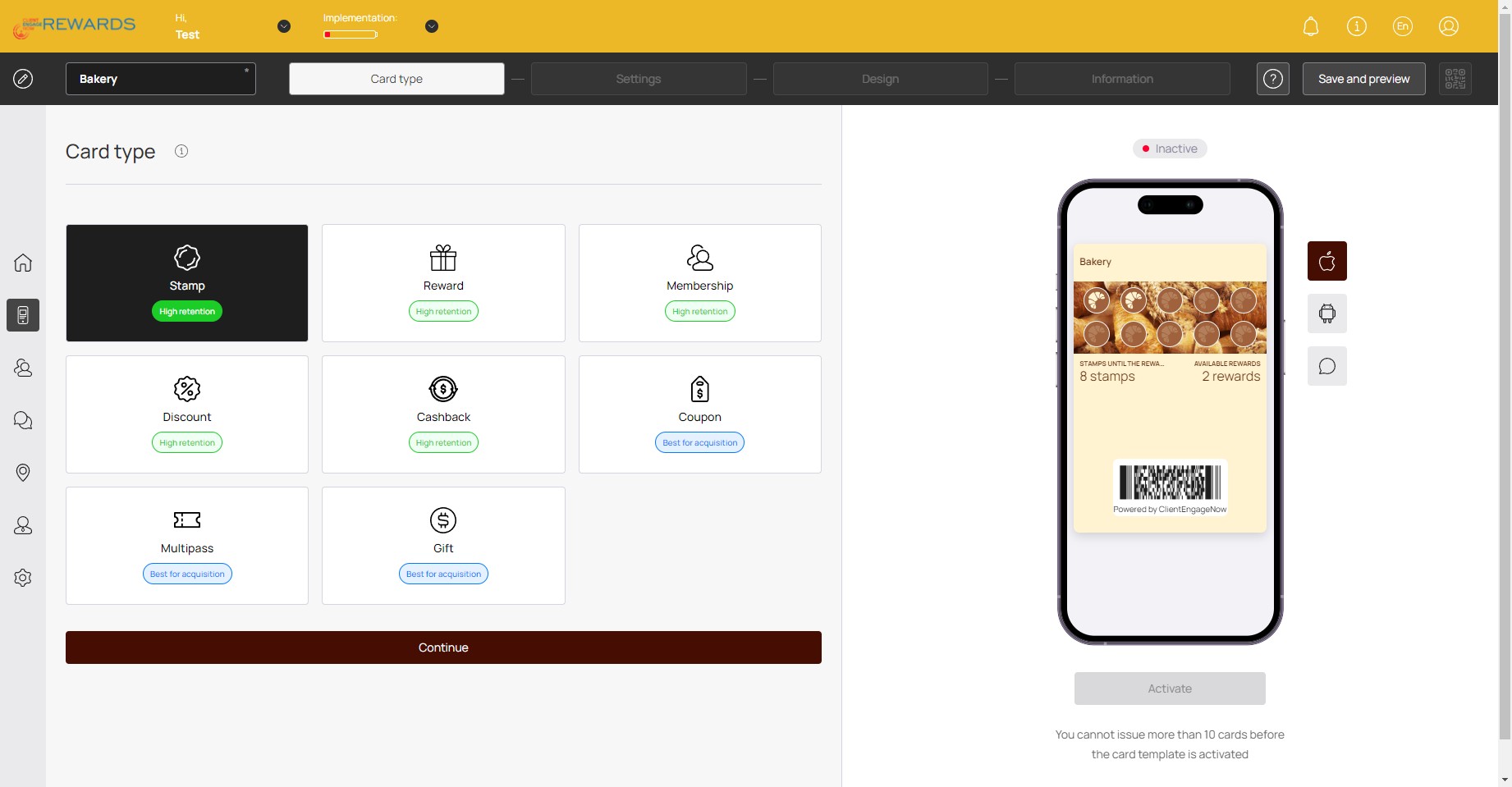
Card Type: Select the type of rewards card you would like to create.
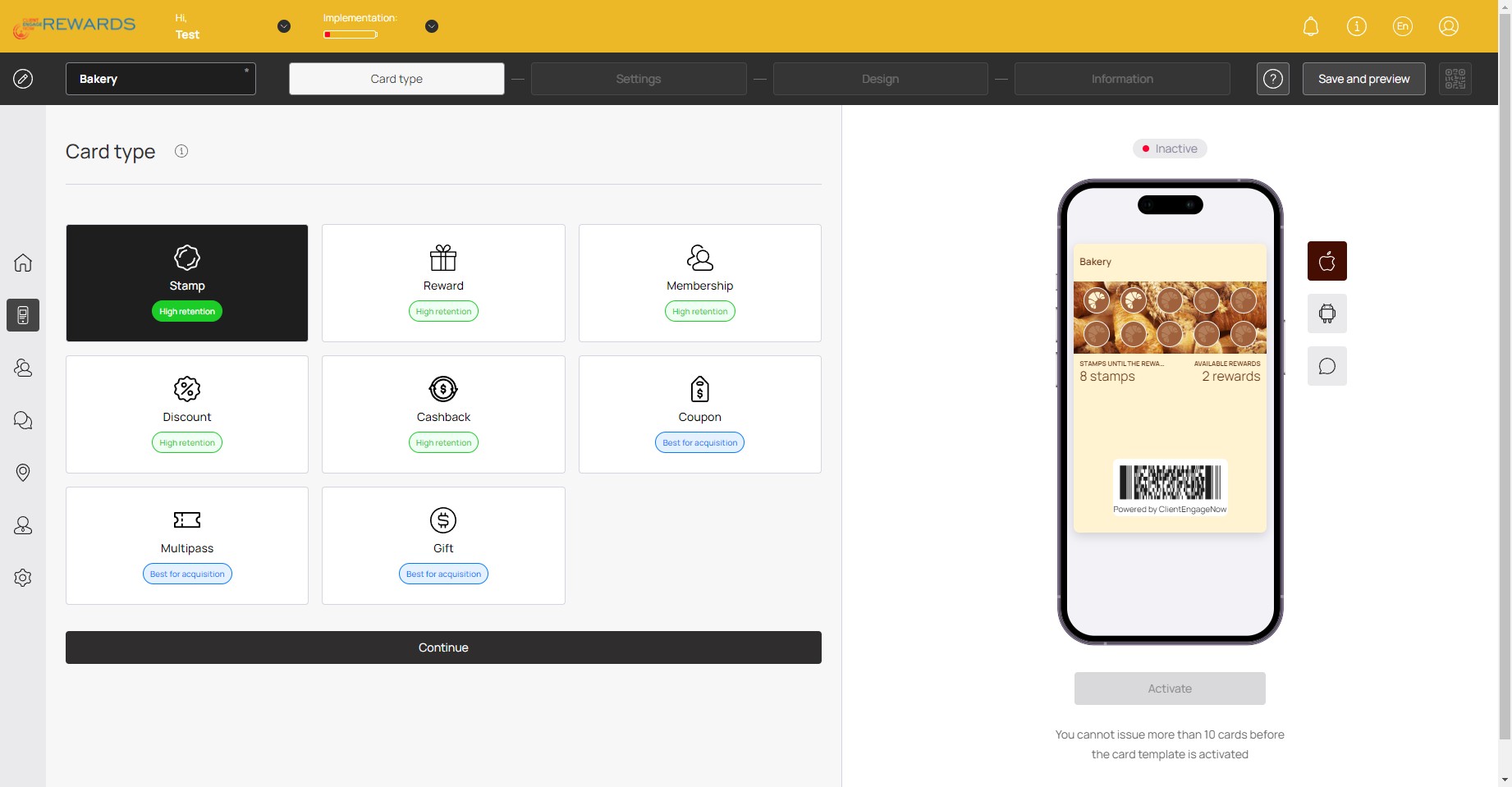
Card Type: Click on "Continue" once you've selected a Card type
Settings: You can edit the card's settings here (Expiration dates)
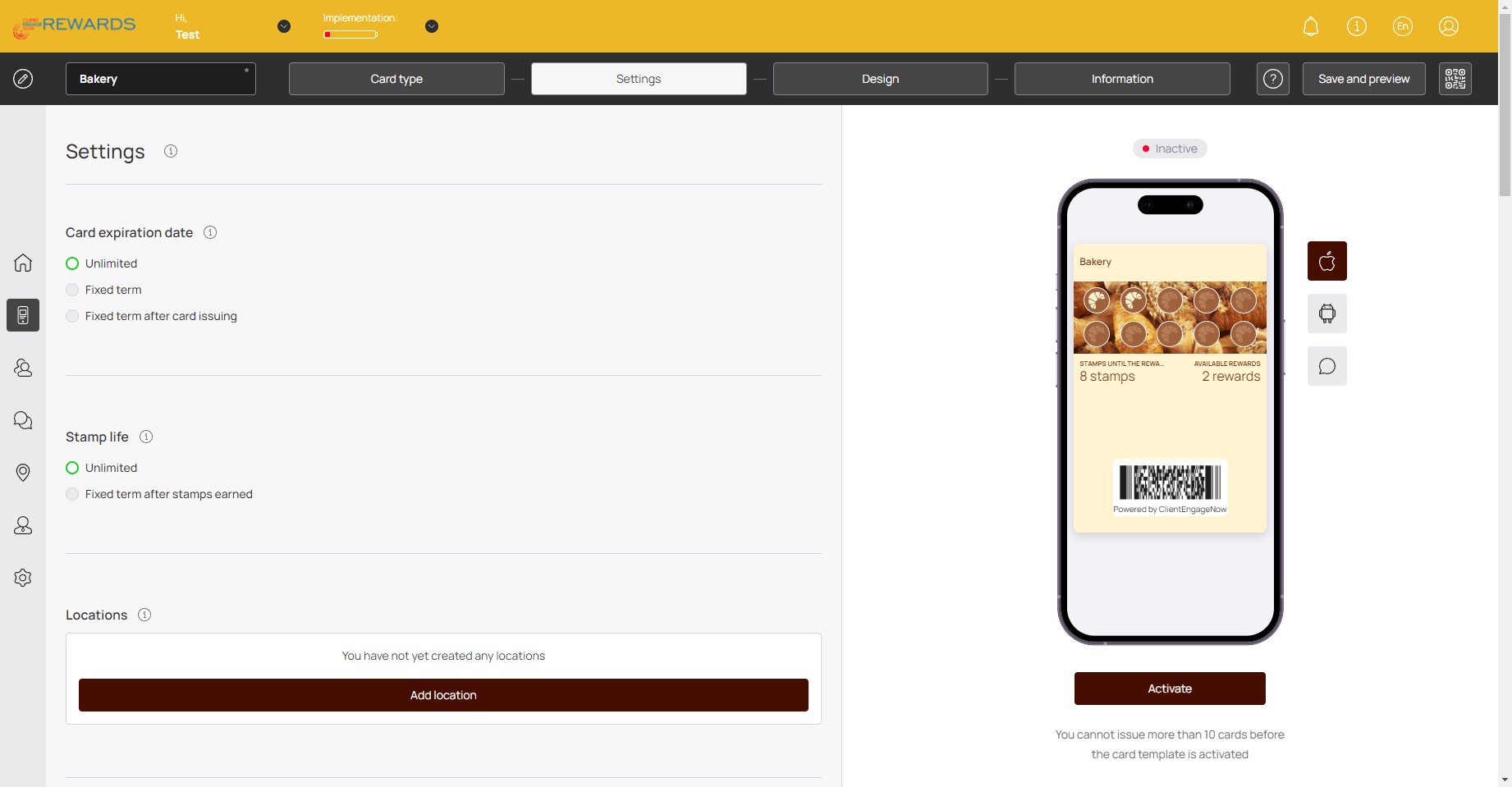
Settings: Click on "Add location" to add your business location.
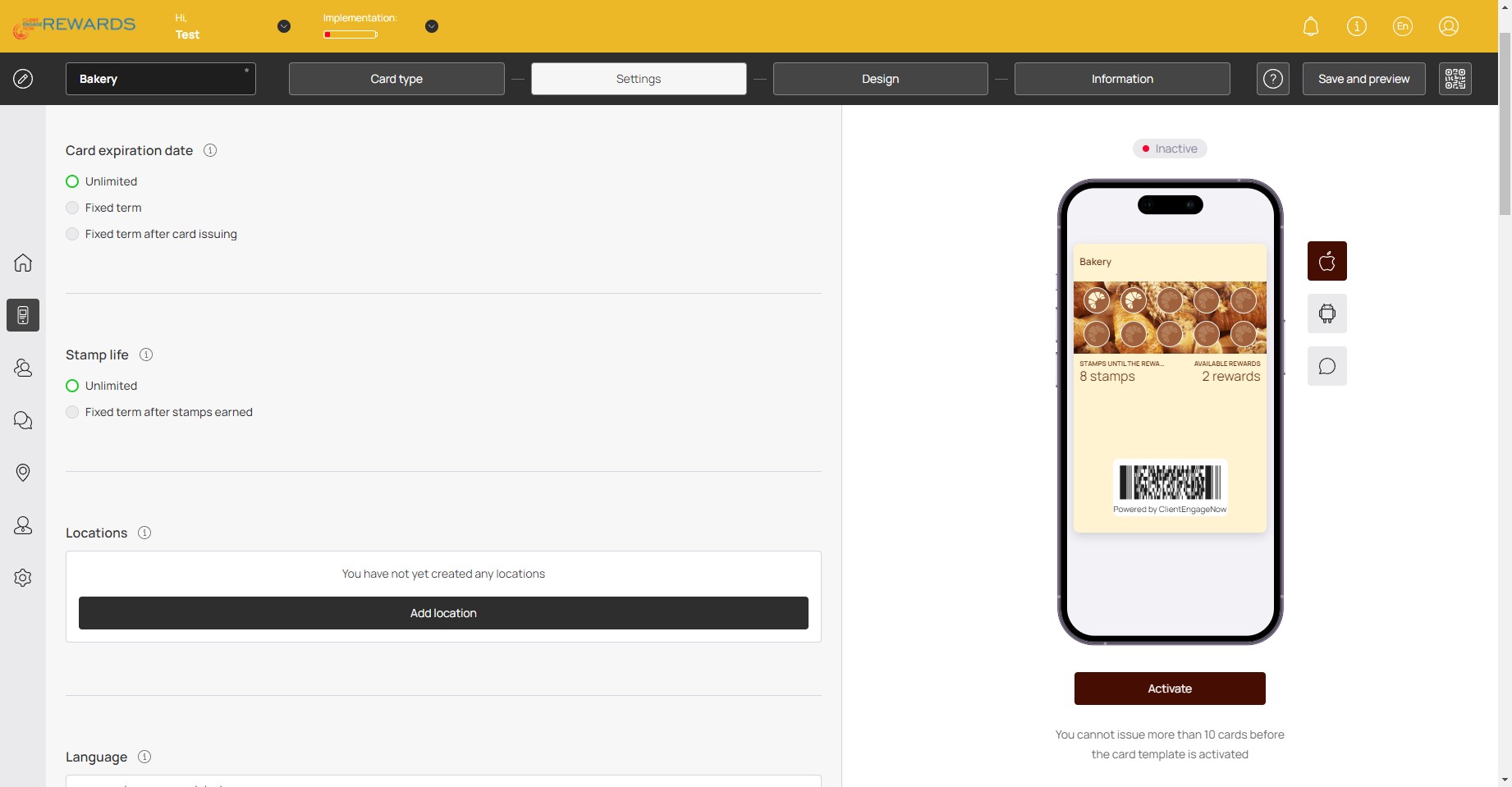
Settings: Enter your Company Name and Address
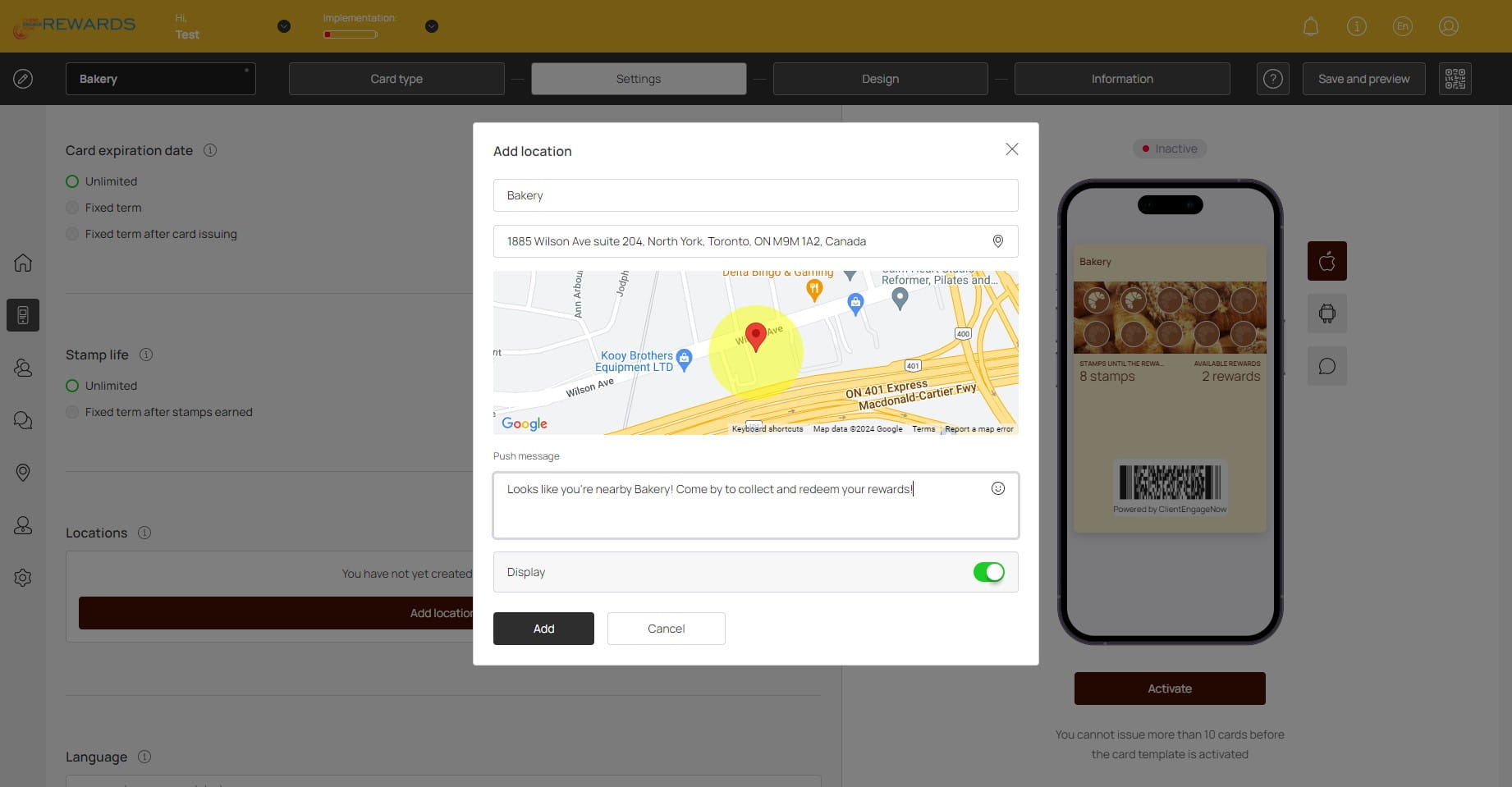
Settings: Enter a Push message. This message is automatically sent to customers when they are nearby your business.
Settings: Click on "Add"
Settings: Click here to edit the amount of stamps given to the customer when they receive the rewards card.
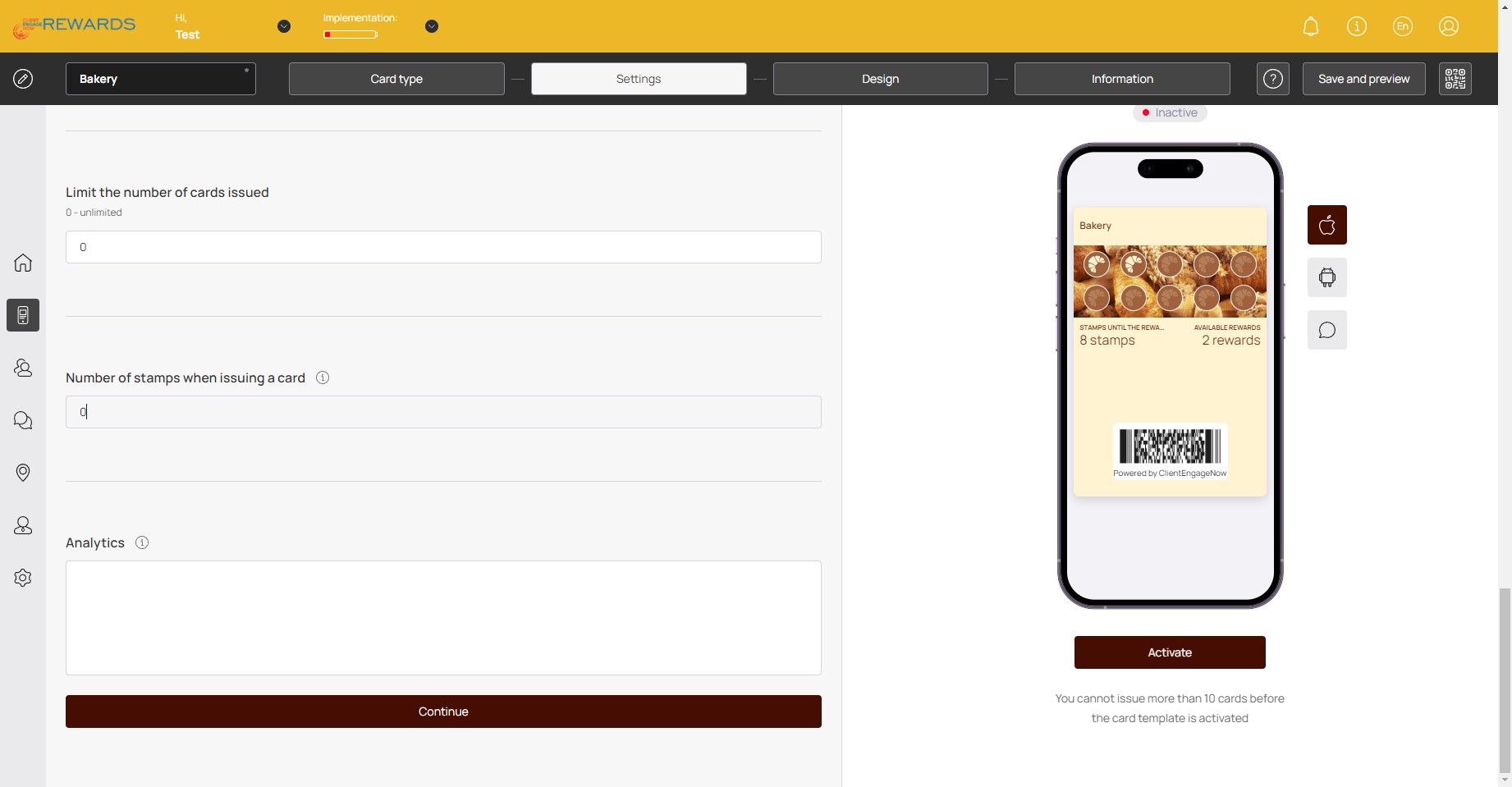
Settings: Click on "Continue"
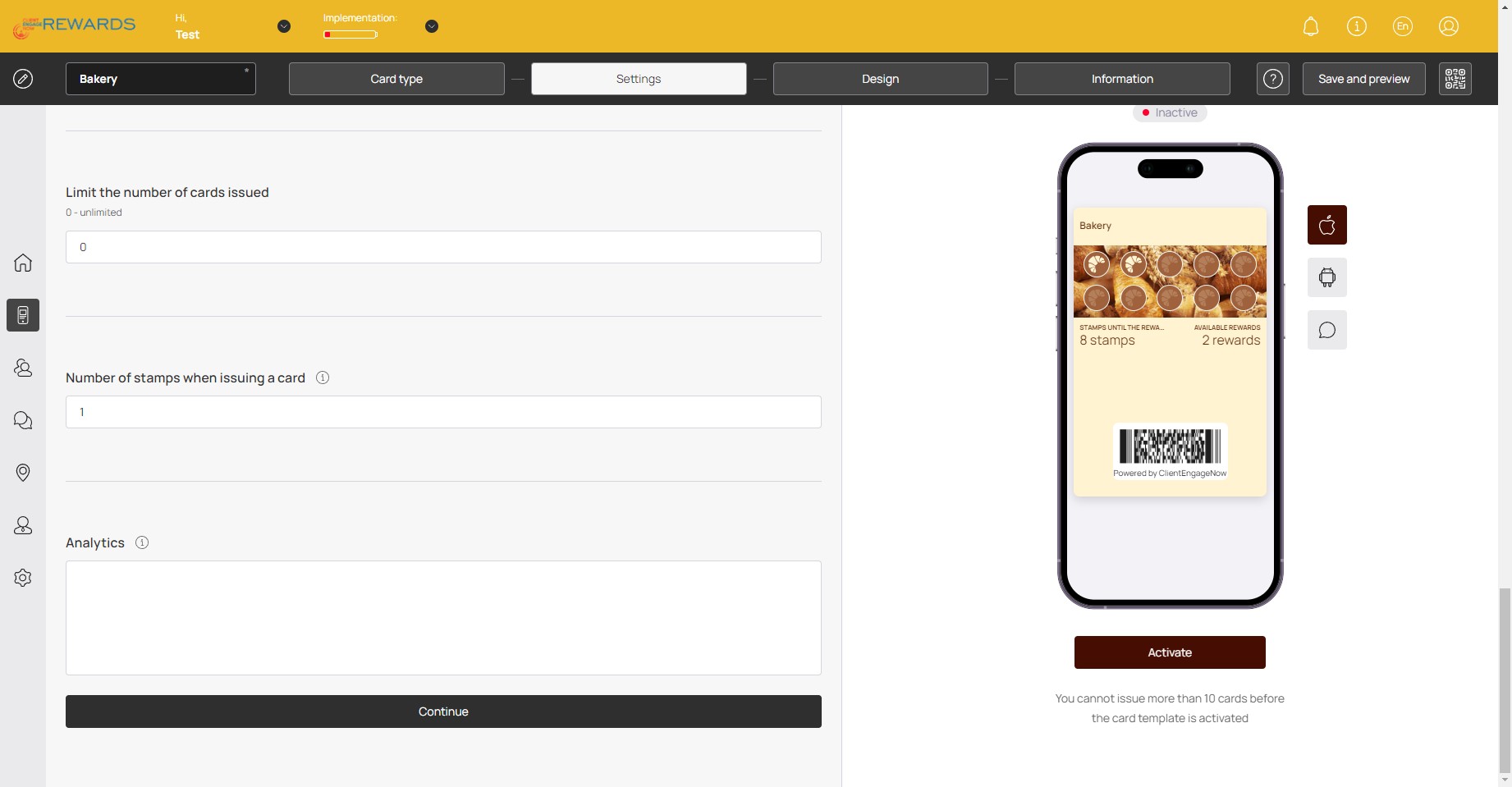
Design: Click here to edit the amount of stamps made available.
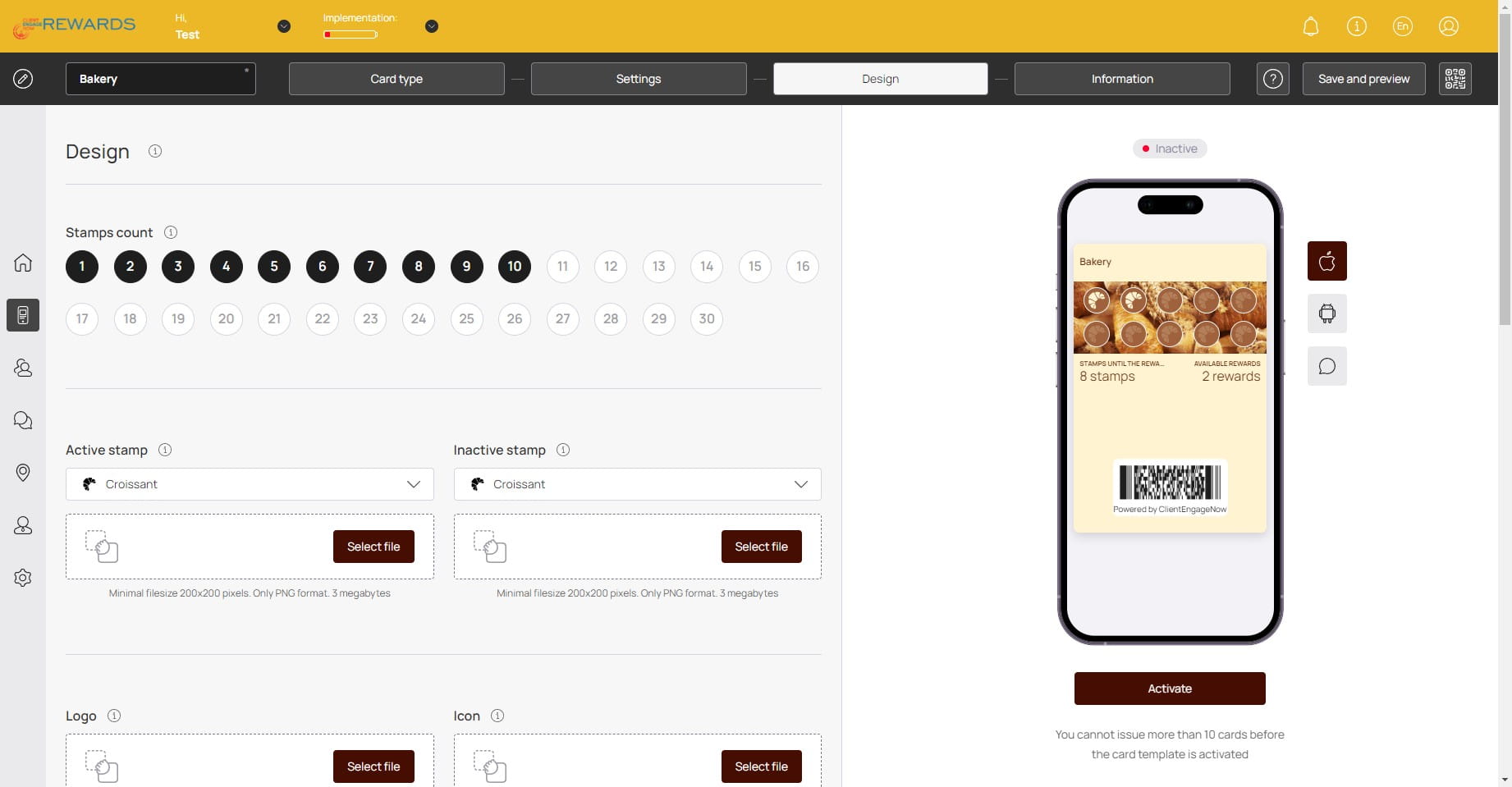
Design: You can continue to customize the rewards cards with Logos, Icons, Background photos in this section.
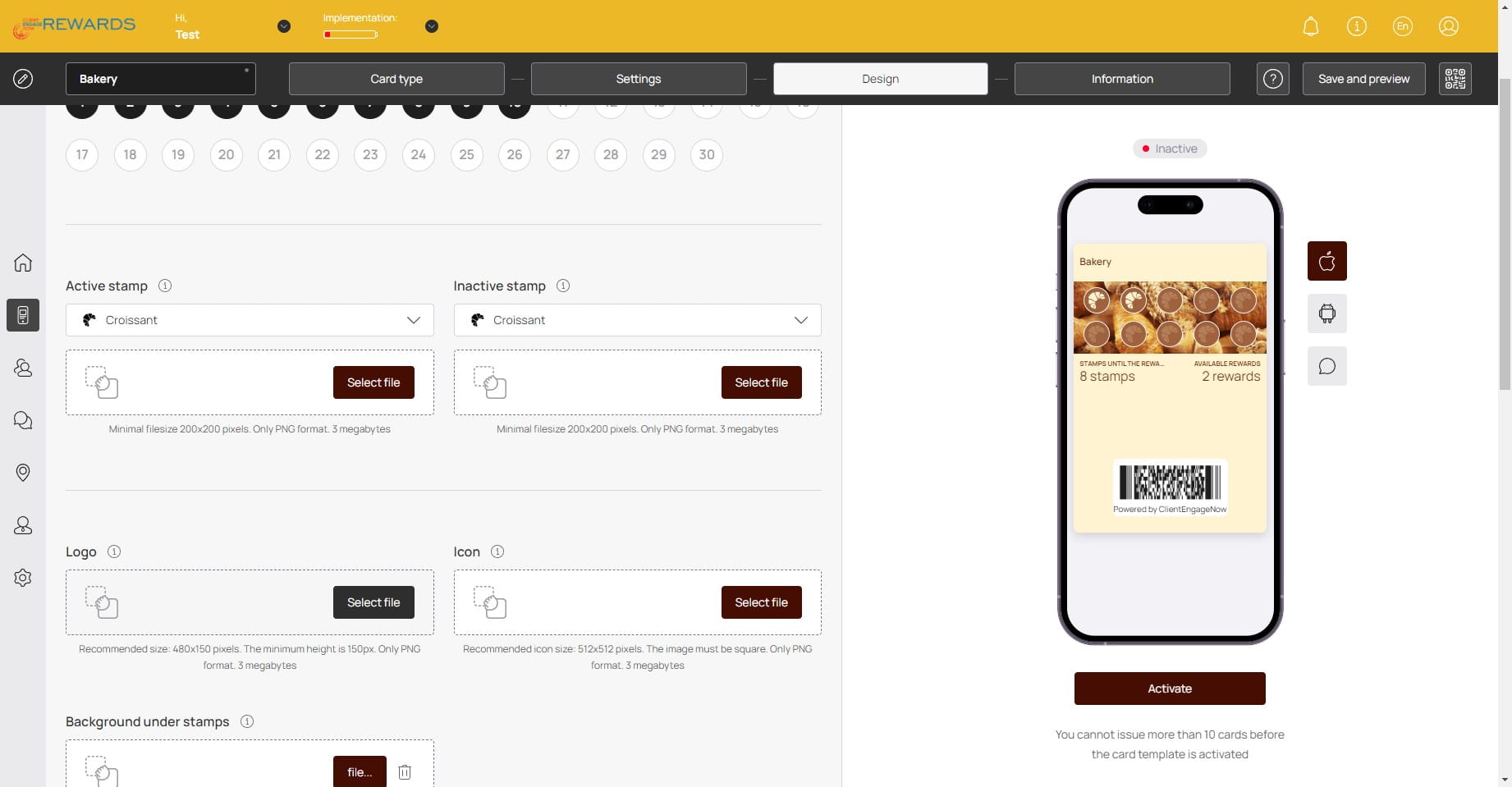
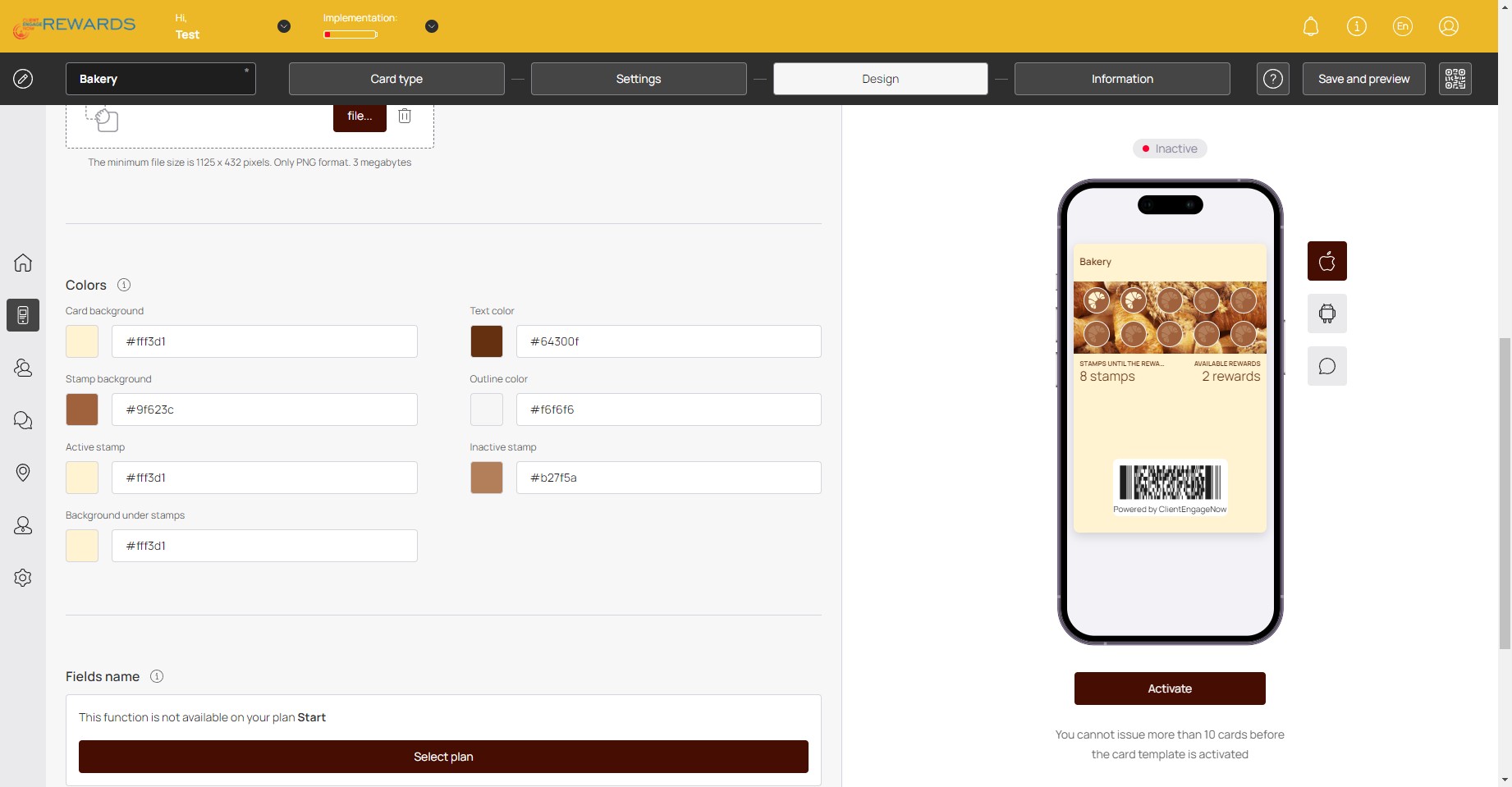
Design: Click here to edit the card's colours.
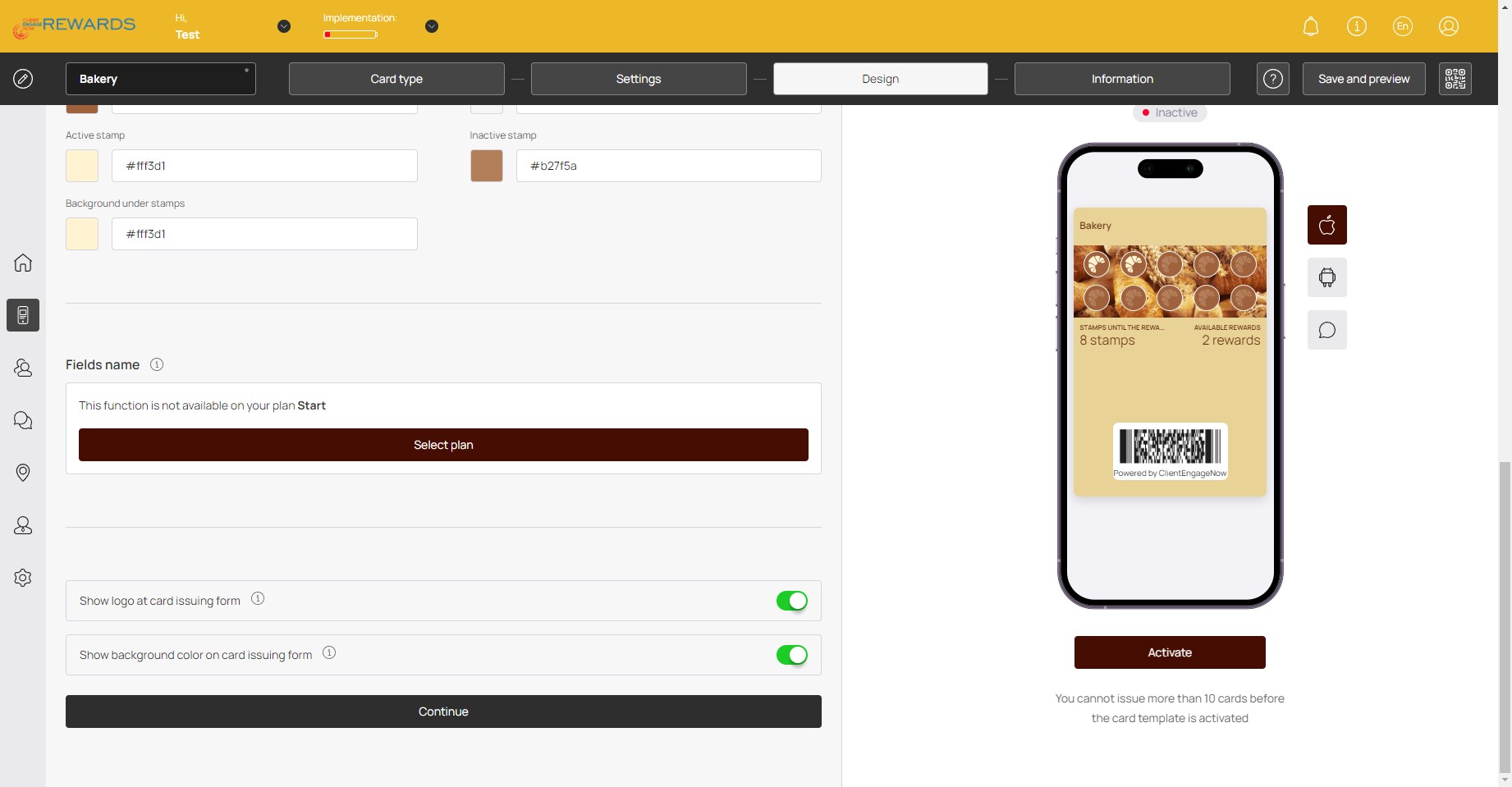
Design: Click on "Continue"
Information: You can edit the information section of the card here.
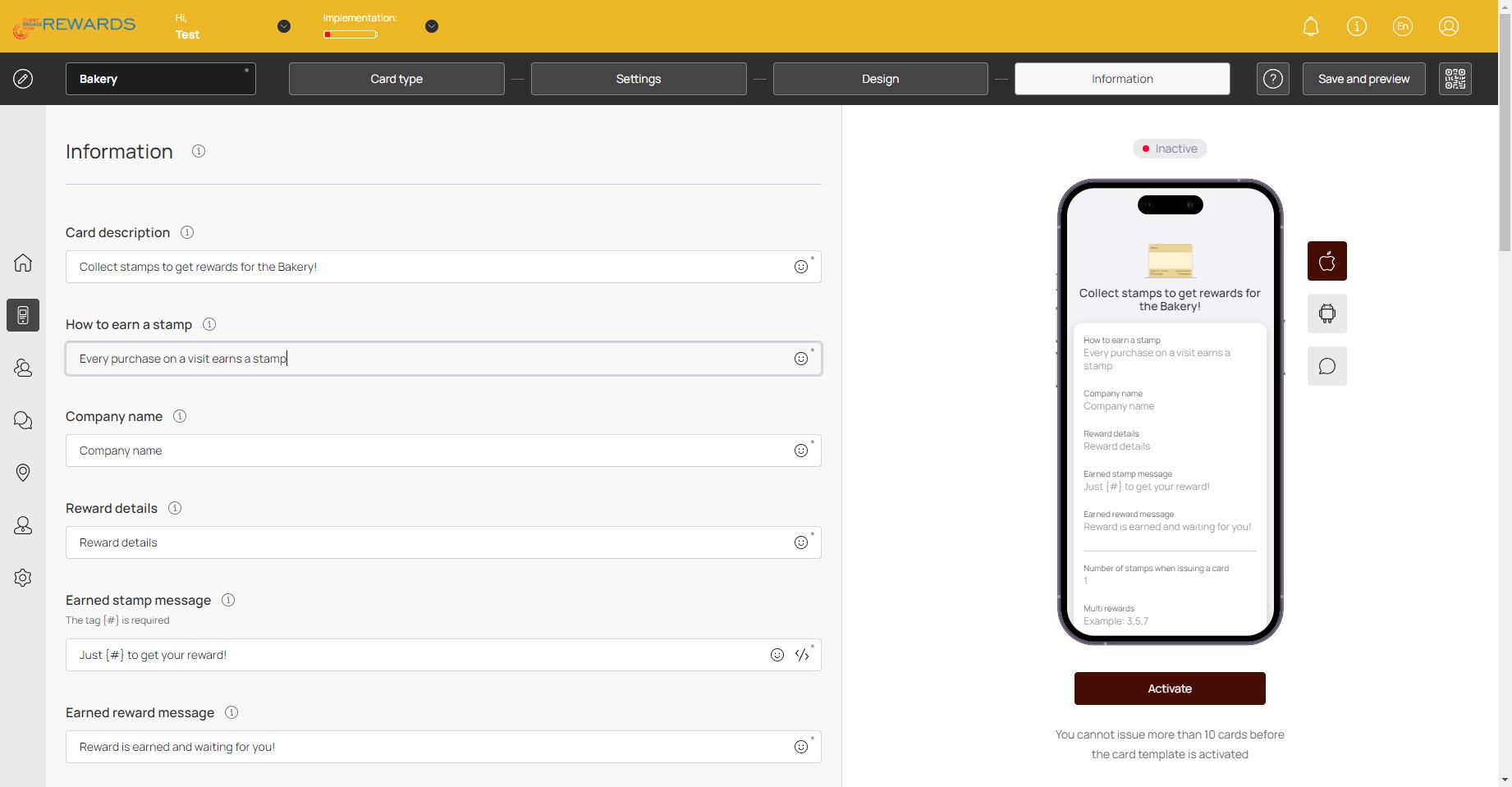
Information: Click here to enter your Company Name on the card's information section.
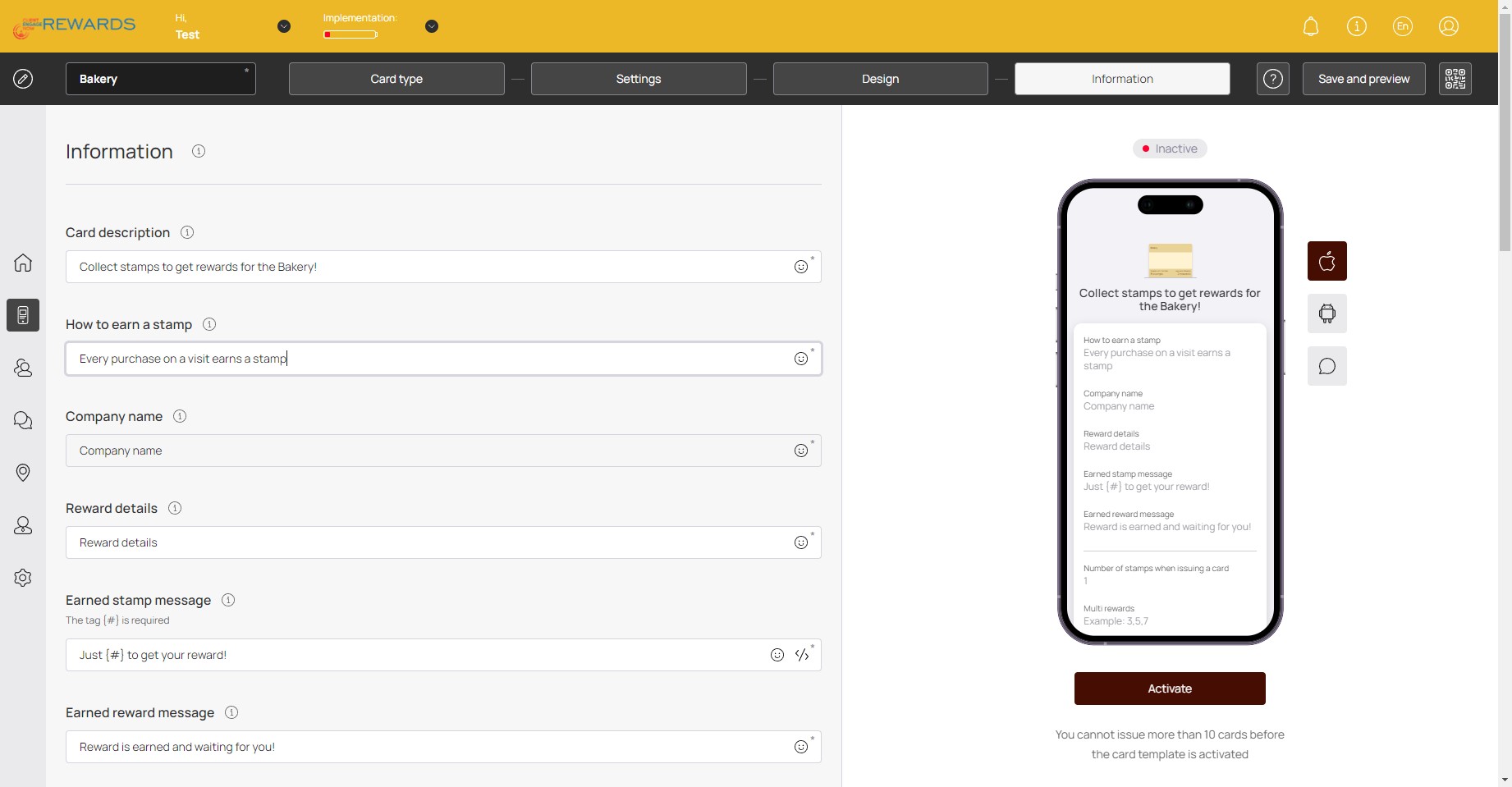
Click on "Finish"
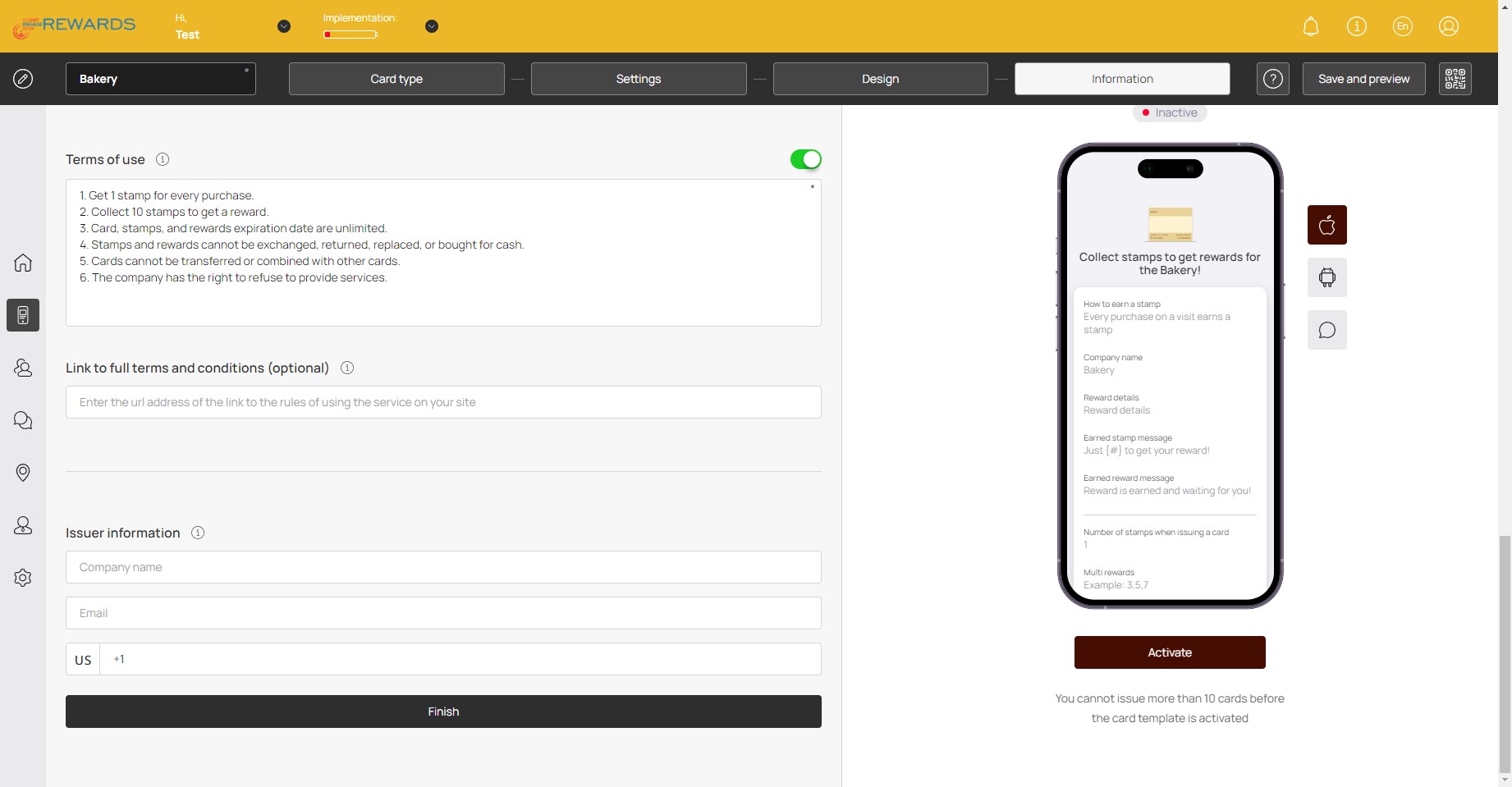
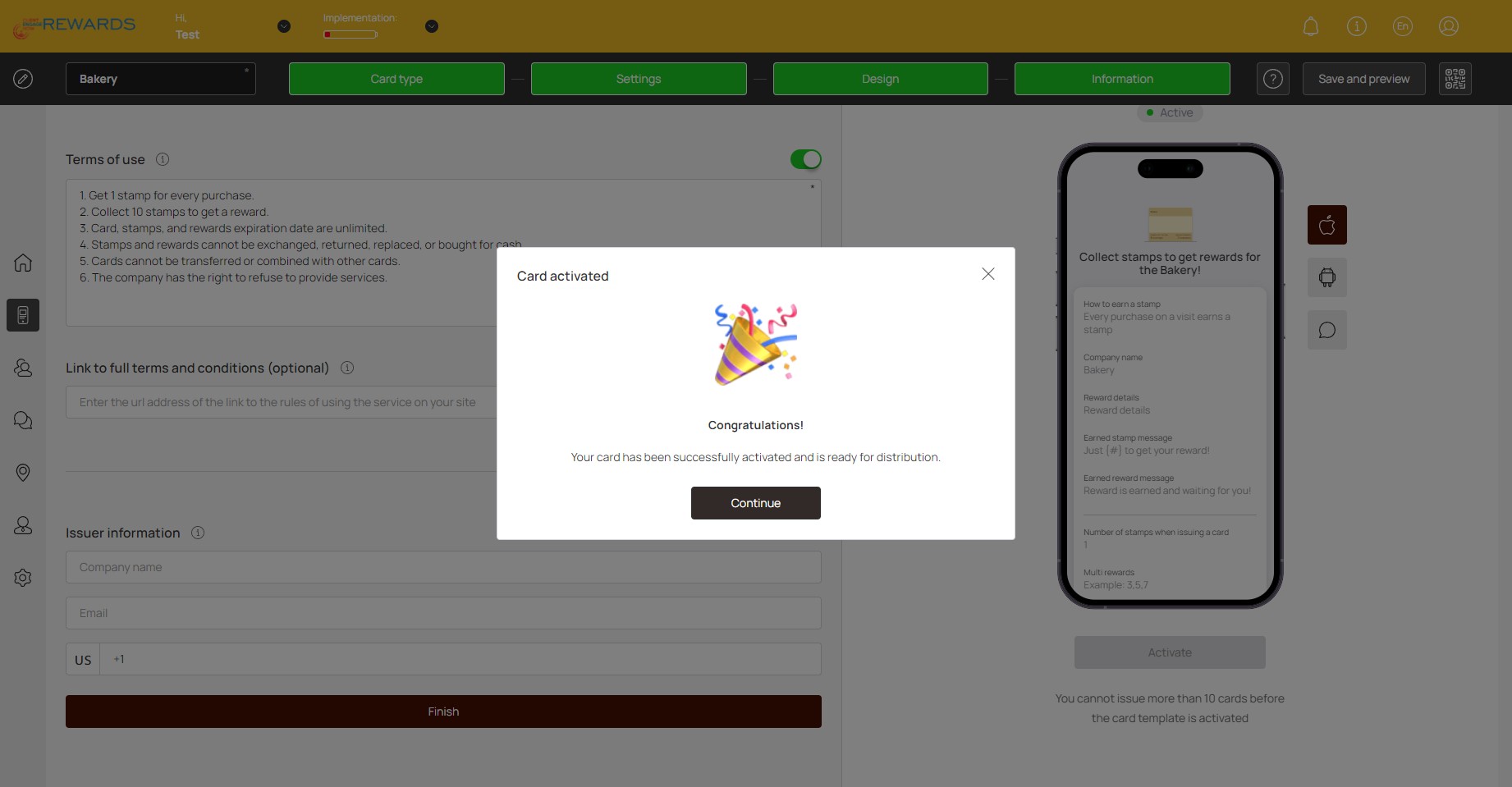
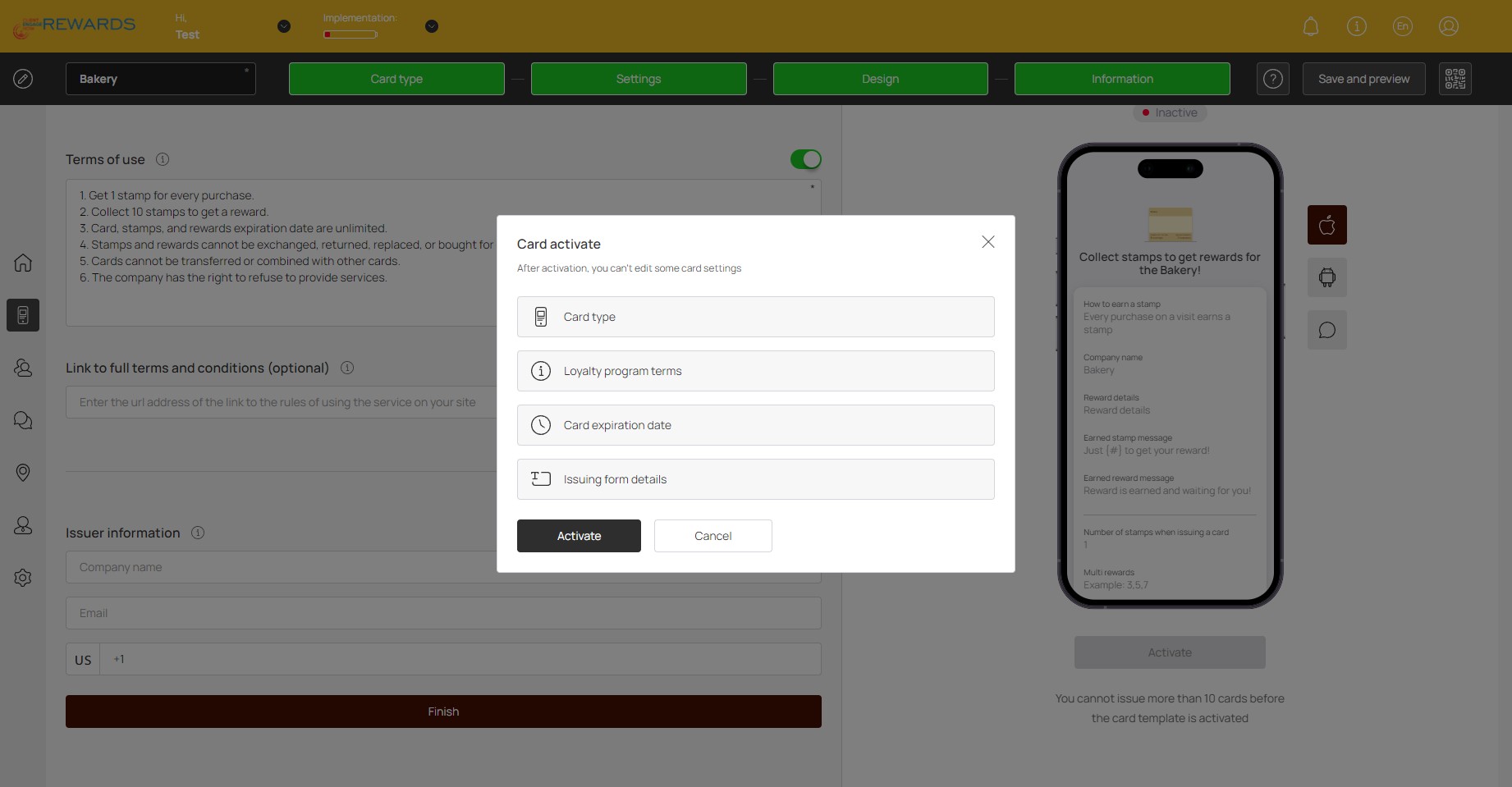
Click on "Activate card"
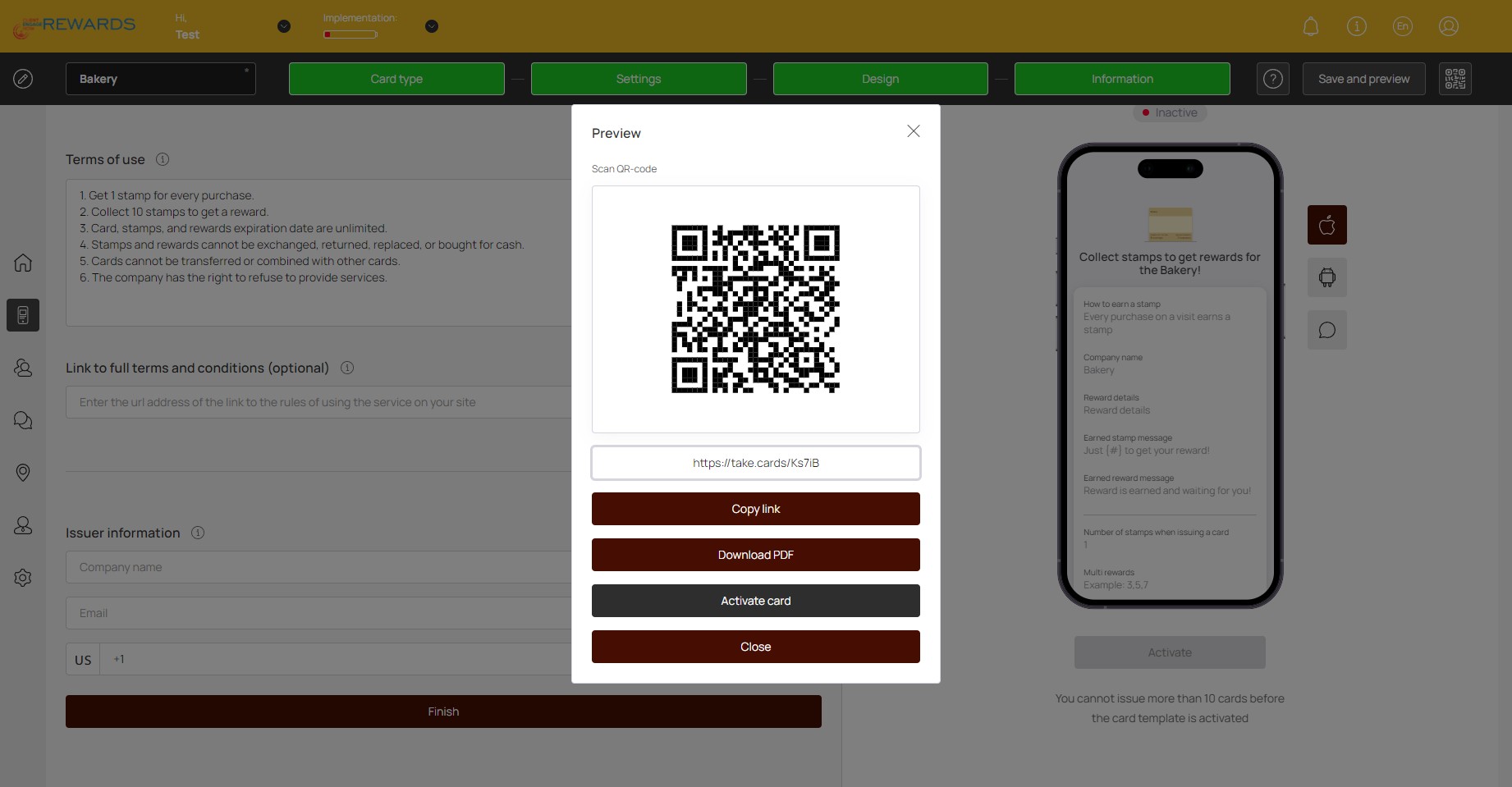
Click on "Activate" once you've completed building your card.
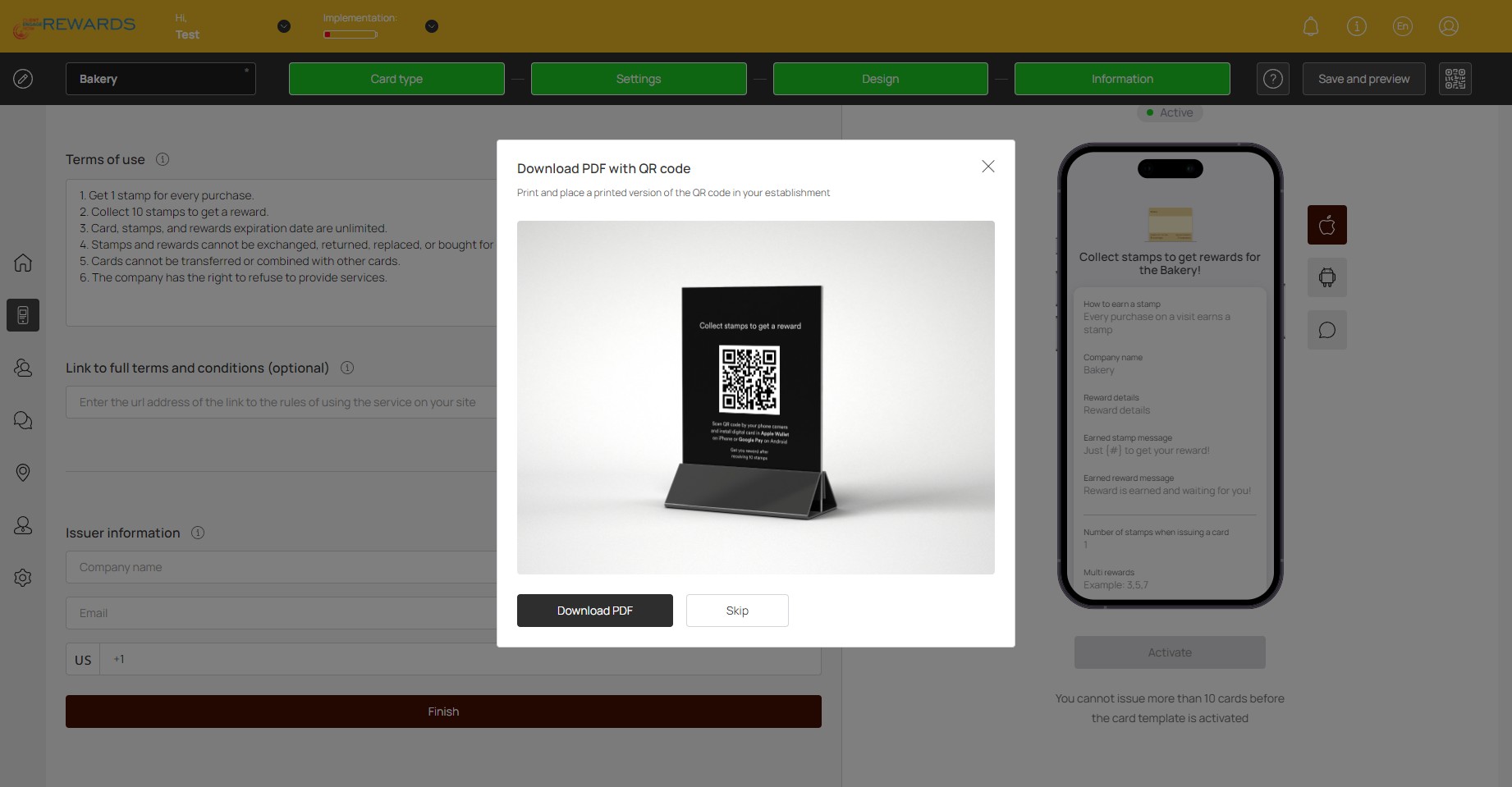
Click on "Download PDF" to receive a digital QR code of the rewards card. This can be shared with customers to receive the card.
Done 🎉